Customer Portal
Customizing Displayed Fields in the Customer Portal
Learn how to customize which fields are displayed for each module in the FieldMagic Customer Portal.
Step-by-step instructions
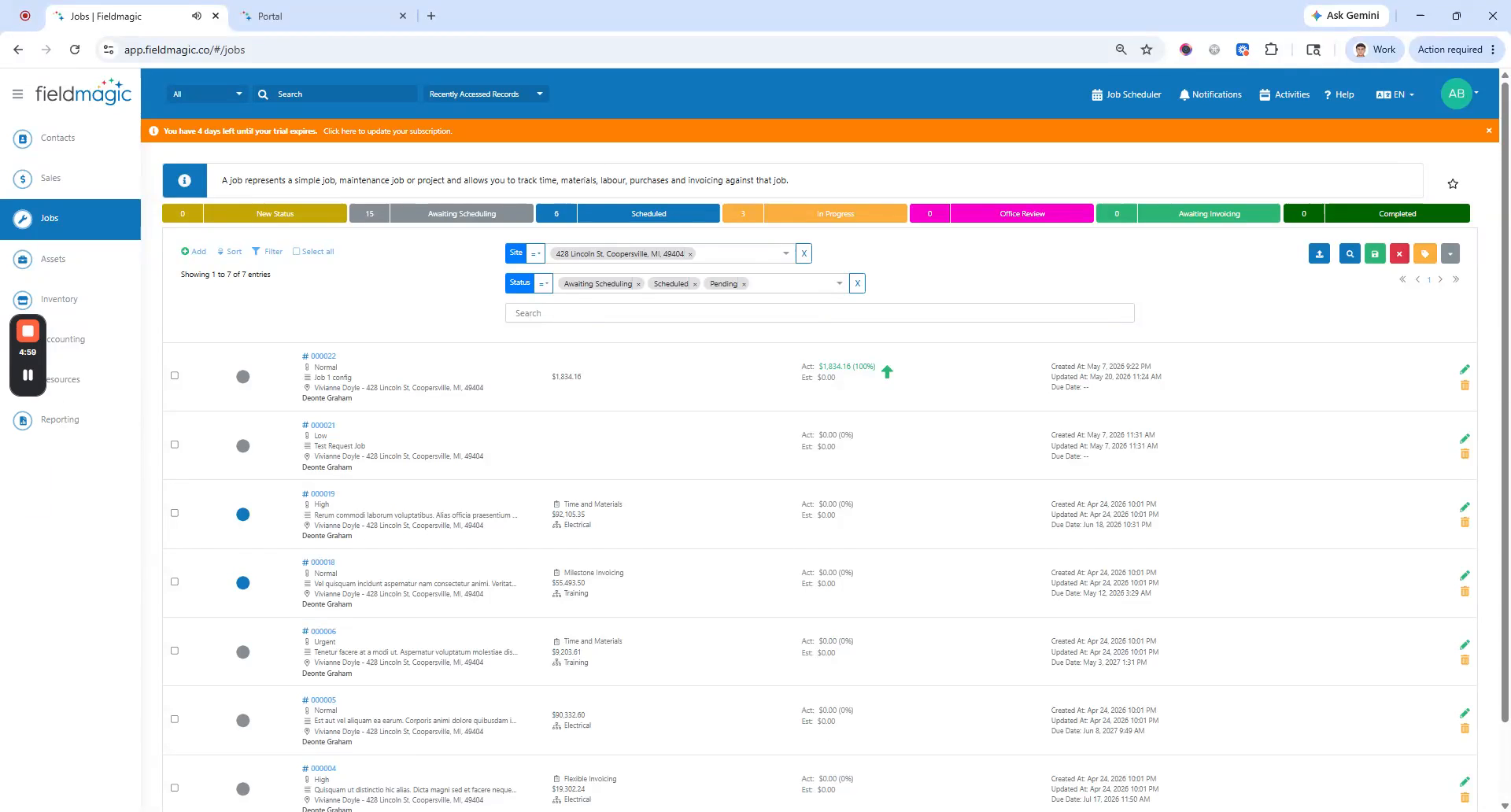 Step 1
Learn how to customize which fields are displayed for each module in the FieldMagic Customer Portal.
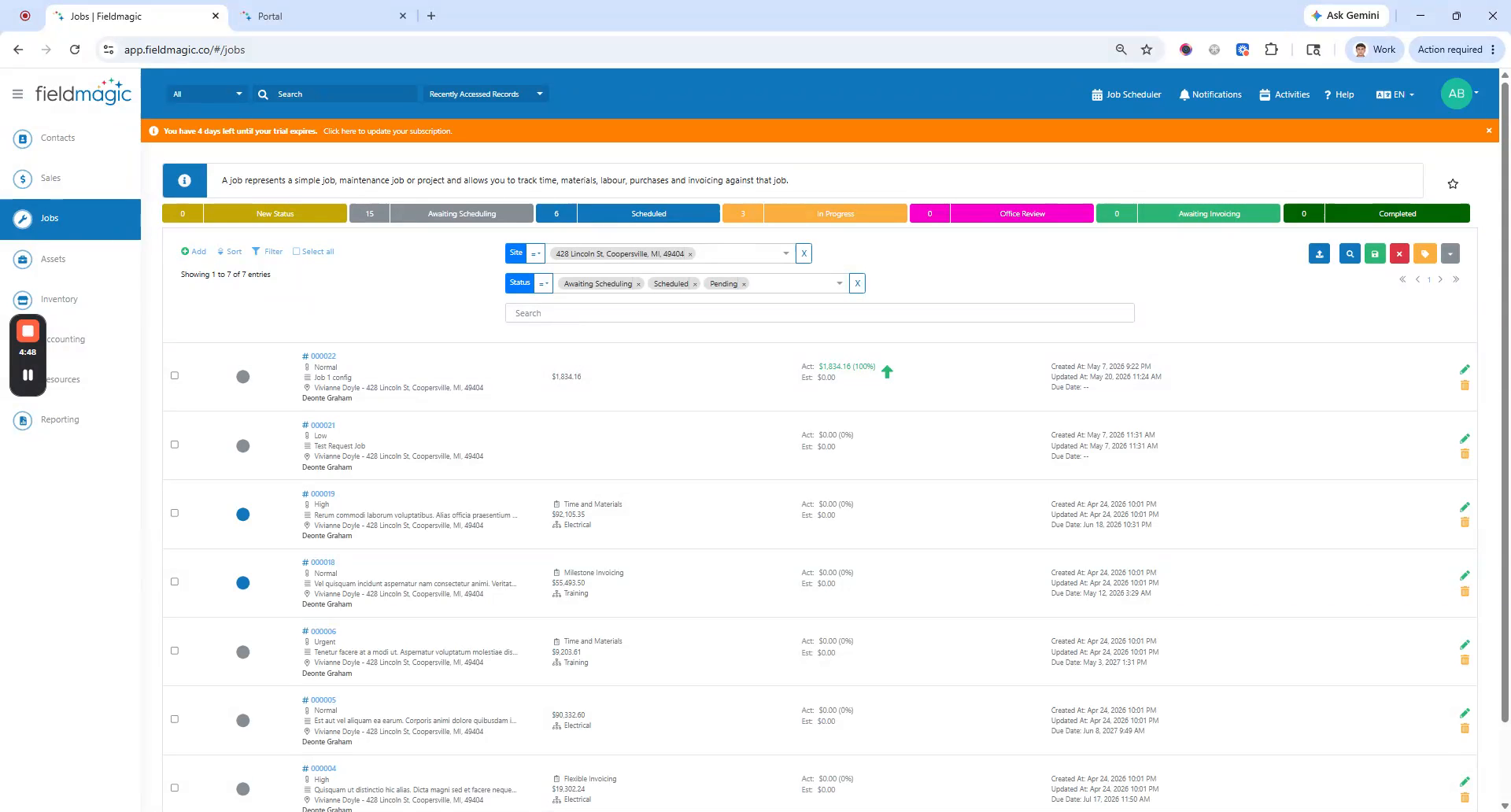 Step 2
Navigate to Settings, select Configure Customer Portal, and choose the module you want to edit (for example, Quotes or Jobs).
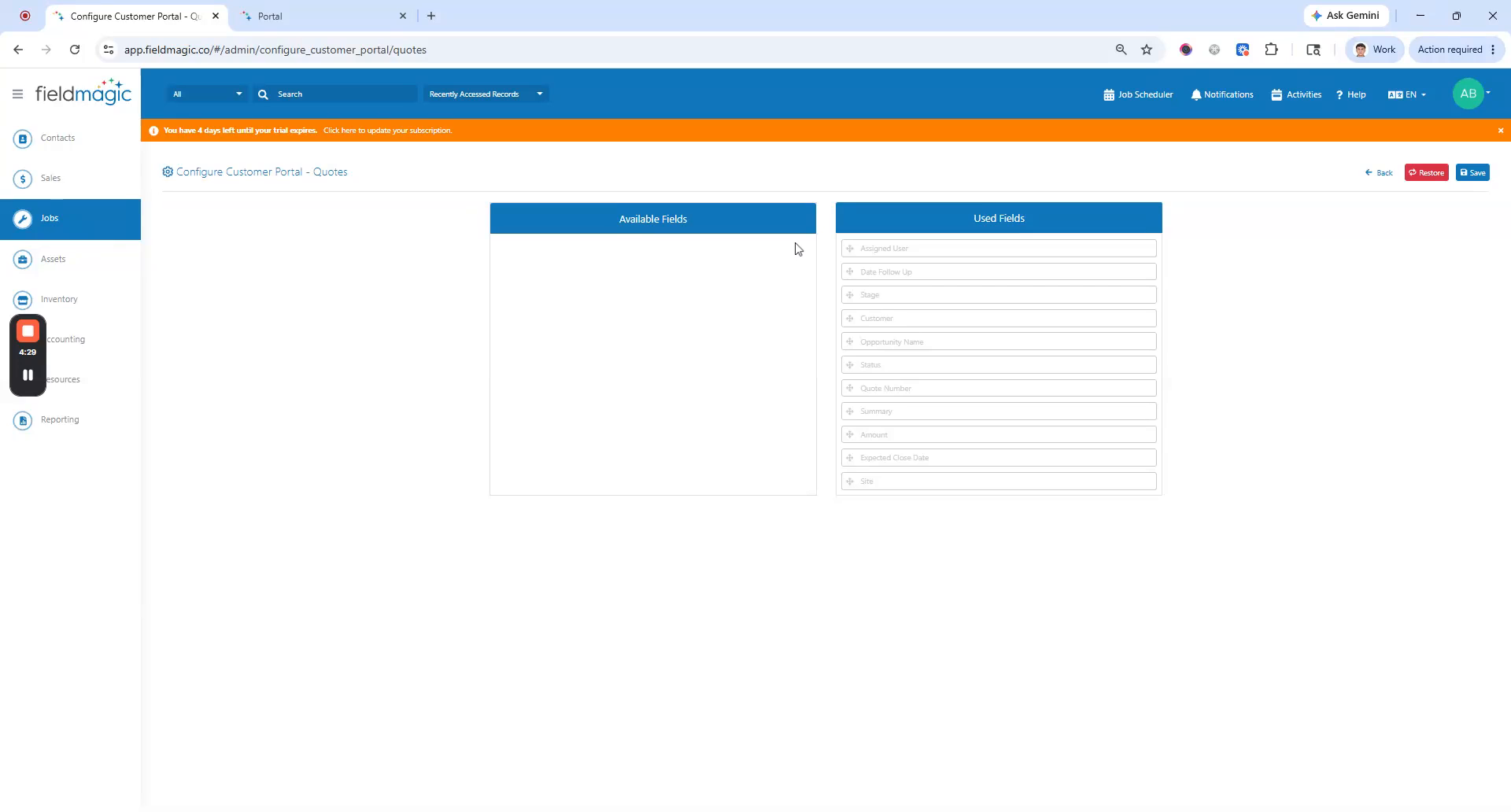 Step 3
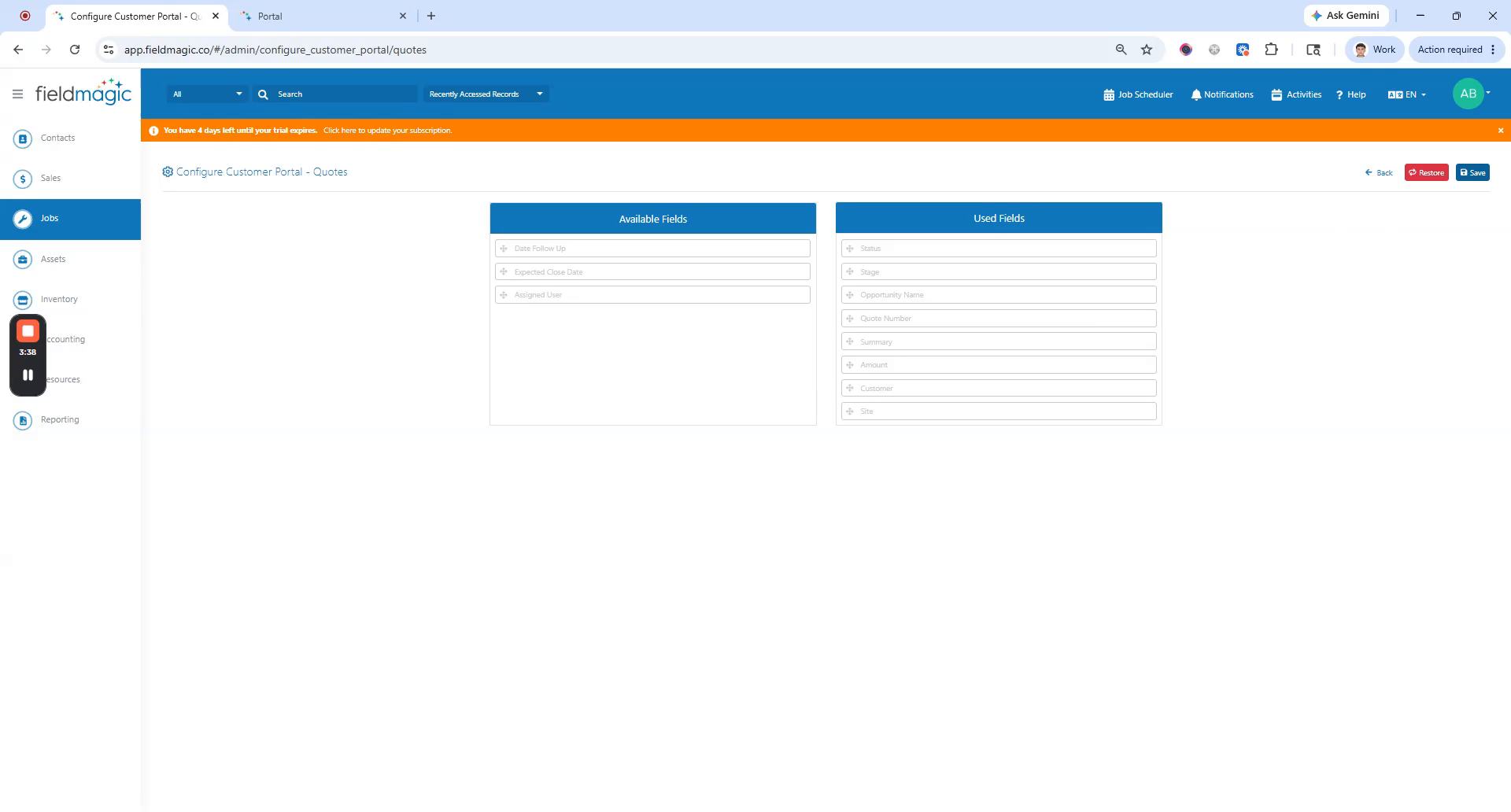
Once inside the module editor, you will see two lists: Used Fields and Available Fields. Click Restore to reset fields to their default configuration if needed.
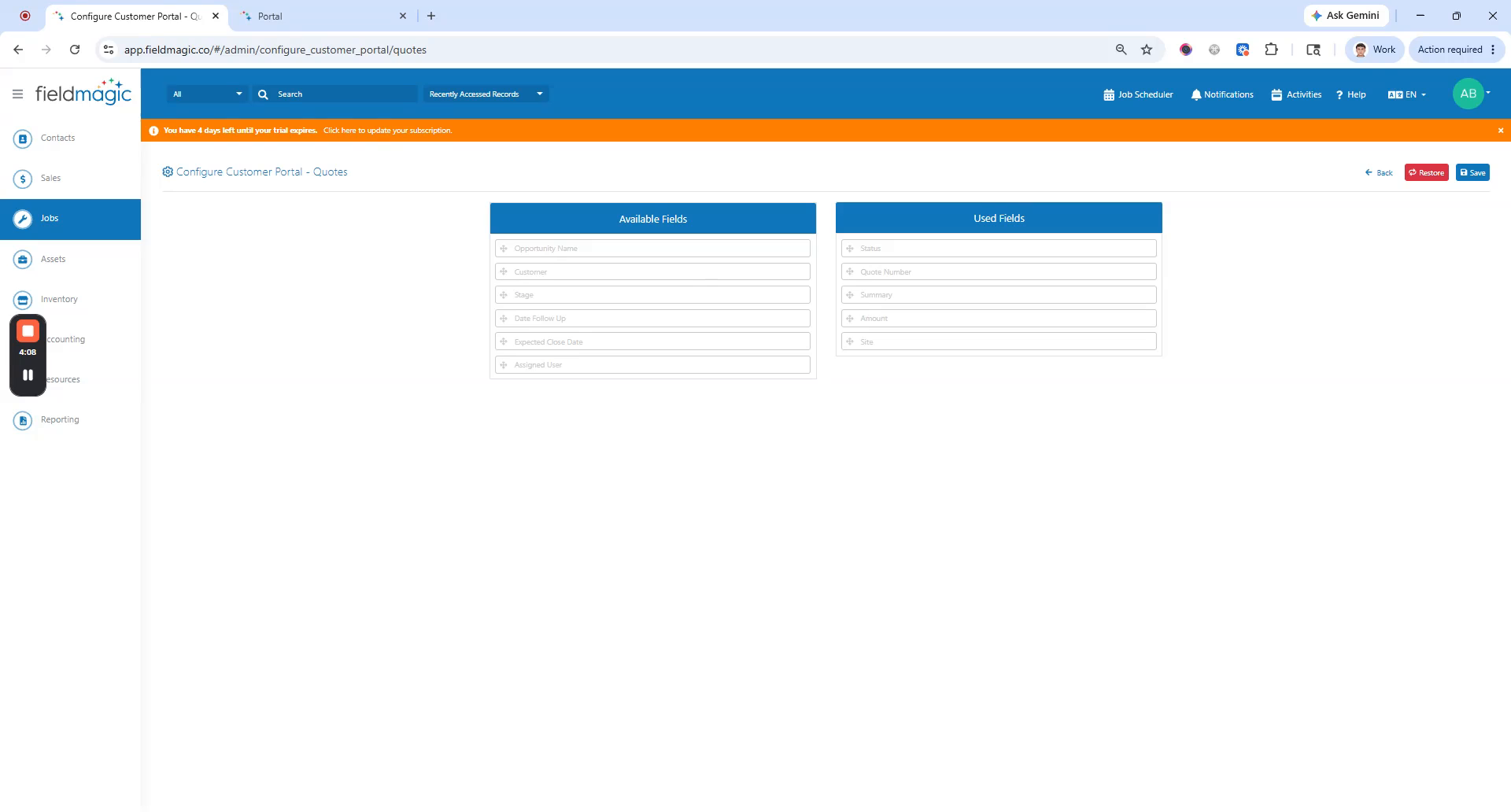 Step 4
Drag fields from the Used Fields list to the Available Fields list to hide them. Drag fields from the Available Fields list to the Used Fields list to display them.
 Step 5
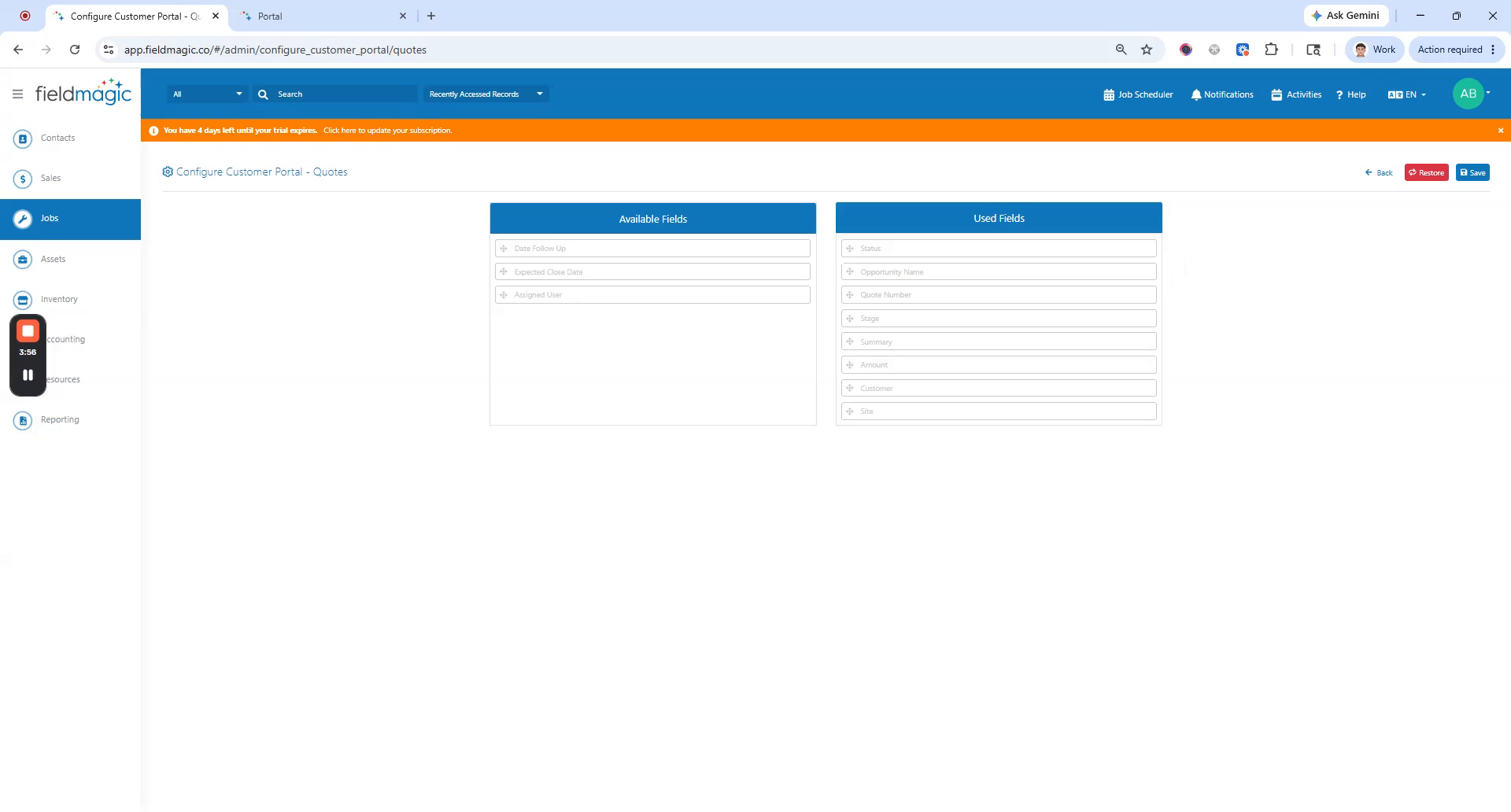
Drag fields within the Used Fields list to rearrange their display order in the portal.
 Step 6
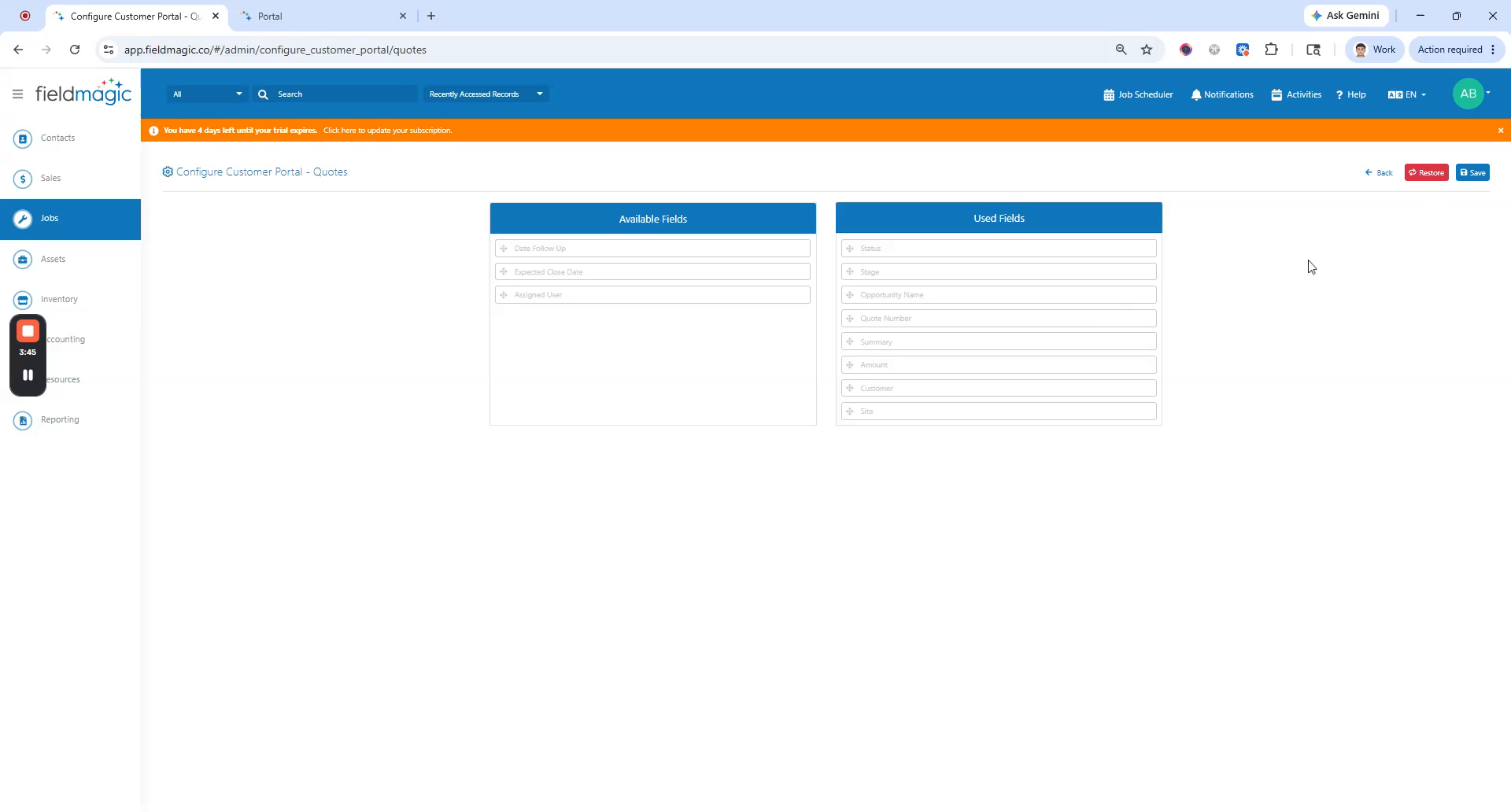
Note that the Status field is required and cannot be hidden for any module. For the Jobs module, the Due Date field is also required and cannot be hidden.
 Step 7
When you have finished customizing the fields, click Save. Refresh your browser to see the updated fields in the Customer Portal.