Asset Inspections & Management
How to Create Asset Types using Generate with AI
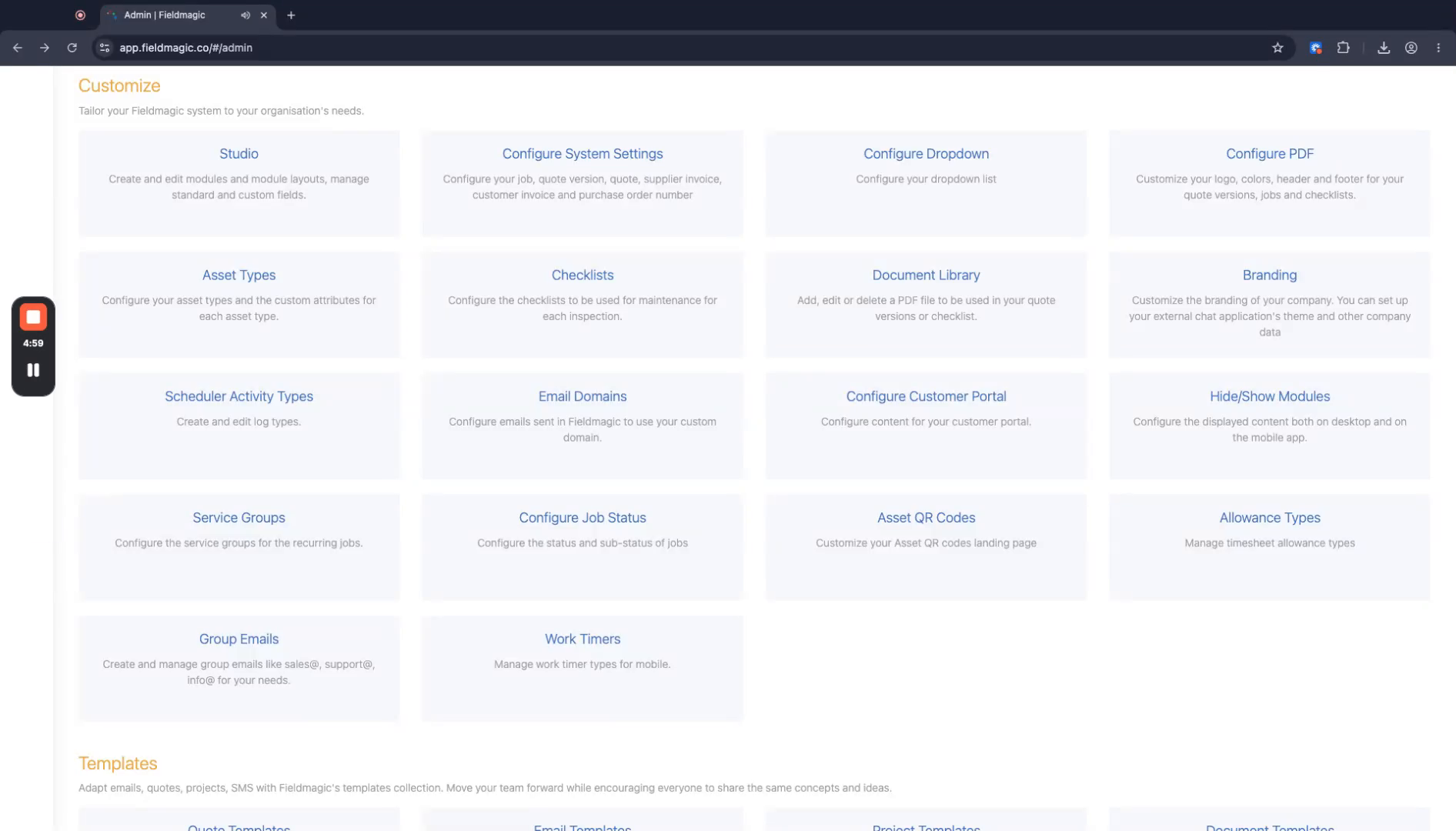
Navigate to Admin, then go to Customize and select Asset Types.
Step-by-step instructions
 Step 1
Navigate to Admin, then go to Customize and select Asset Types.
 Step 2
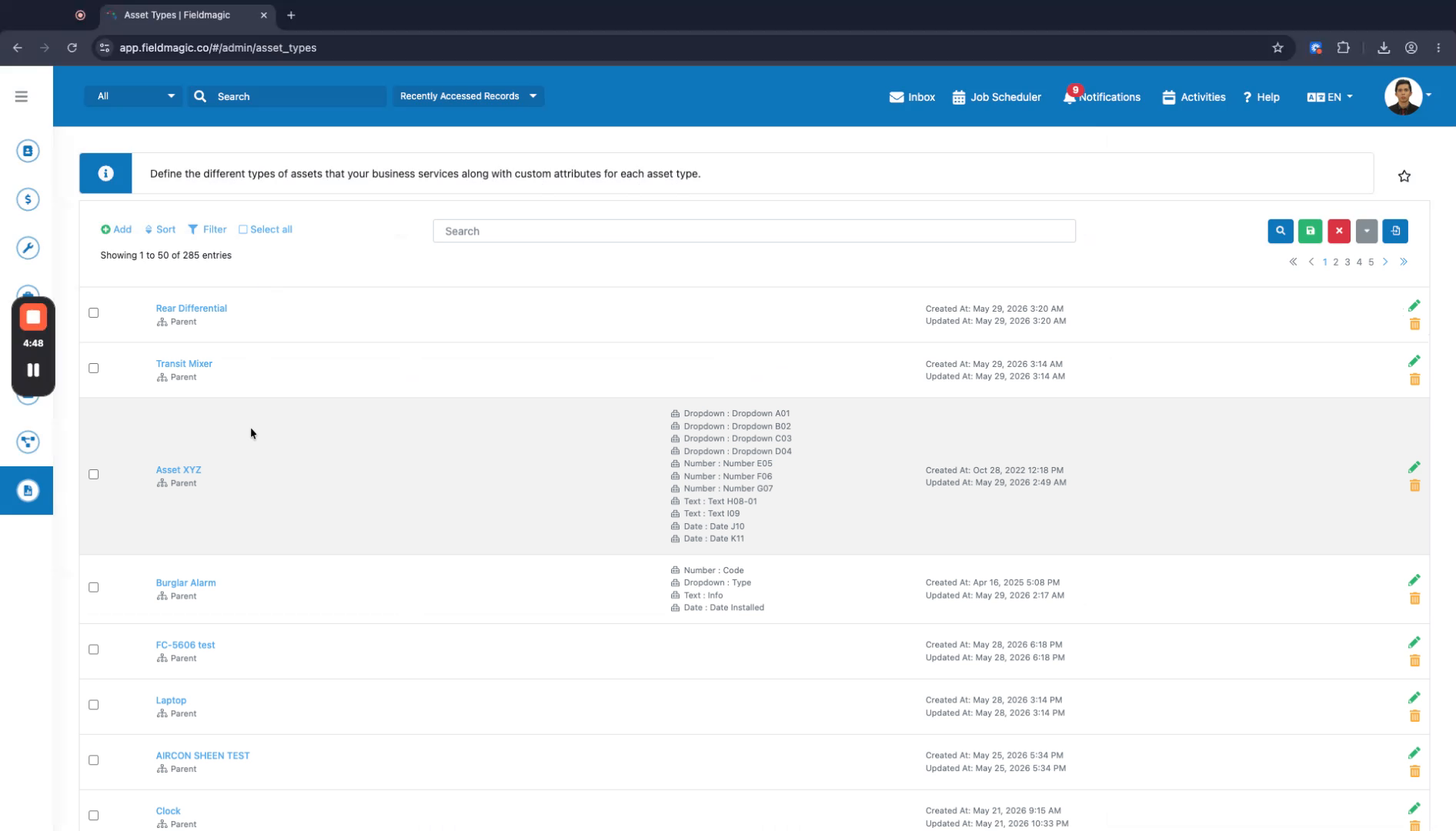
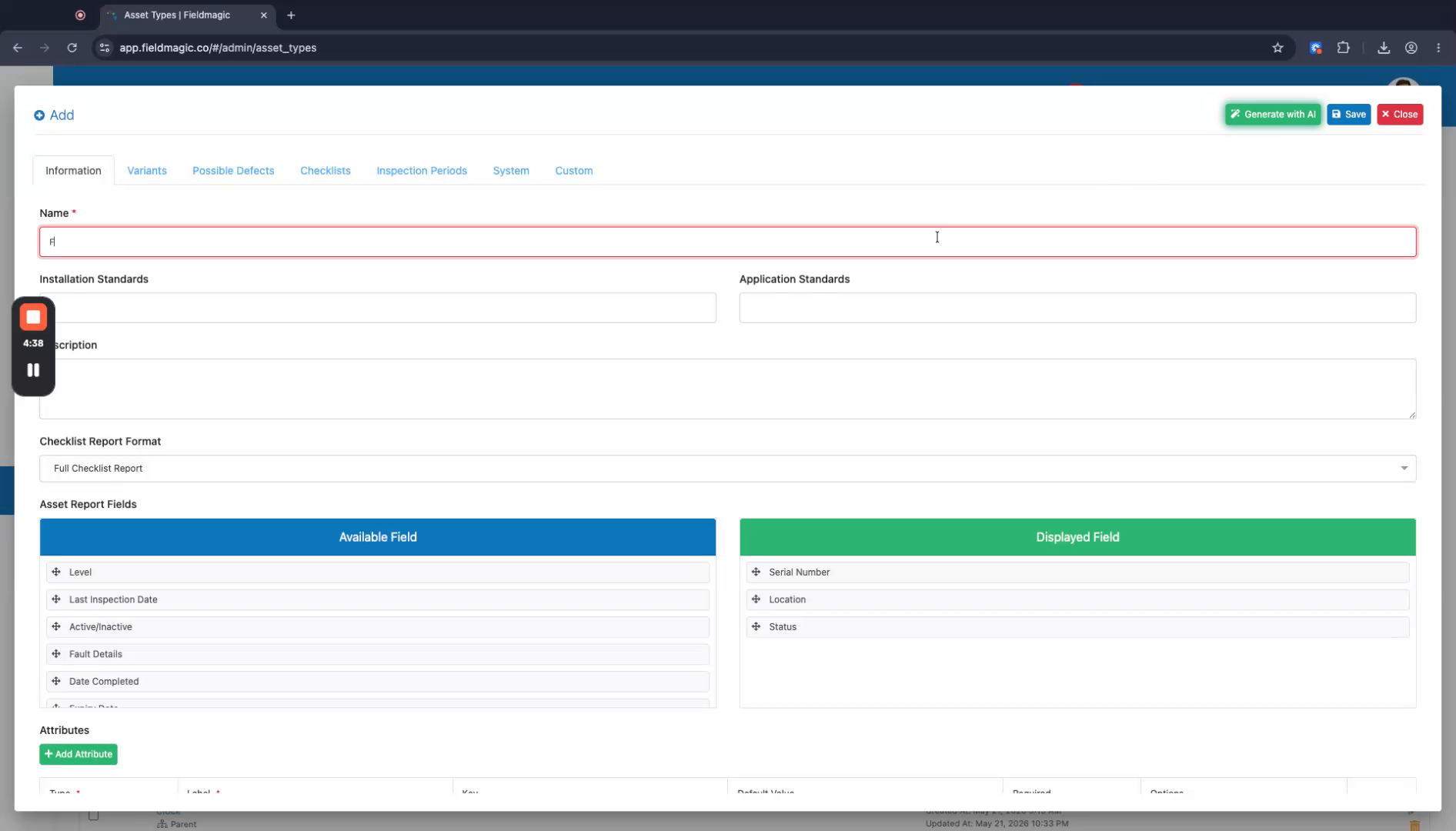
Click the option to create a new asset type, enter a name for the asset, and then click Generate with AI.
 Step 3
Wait for the AI generation to complete while the system processes your request.
 Step 4
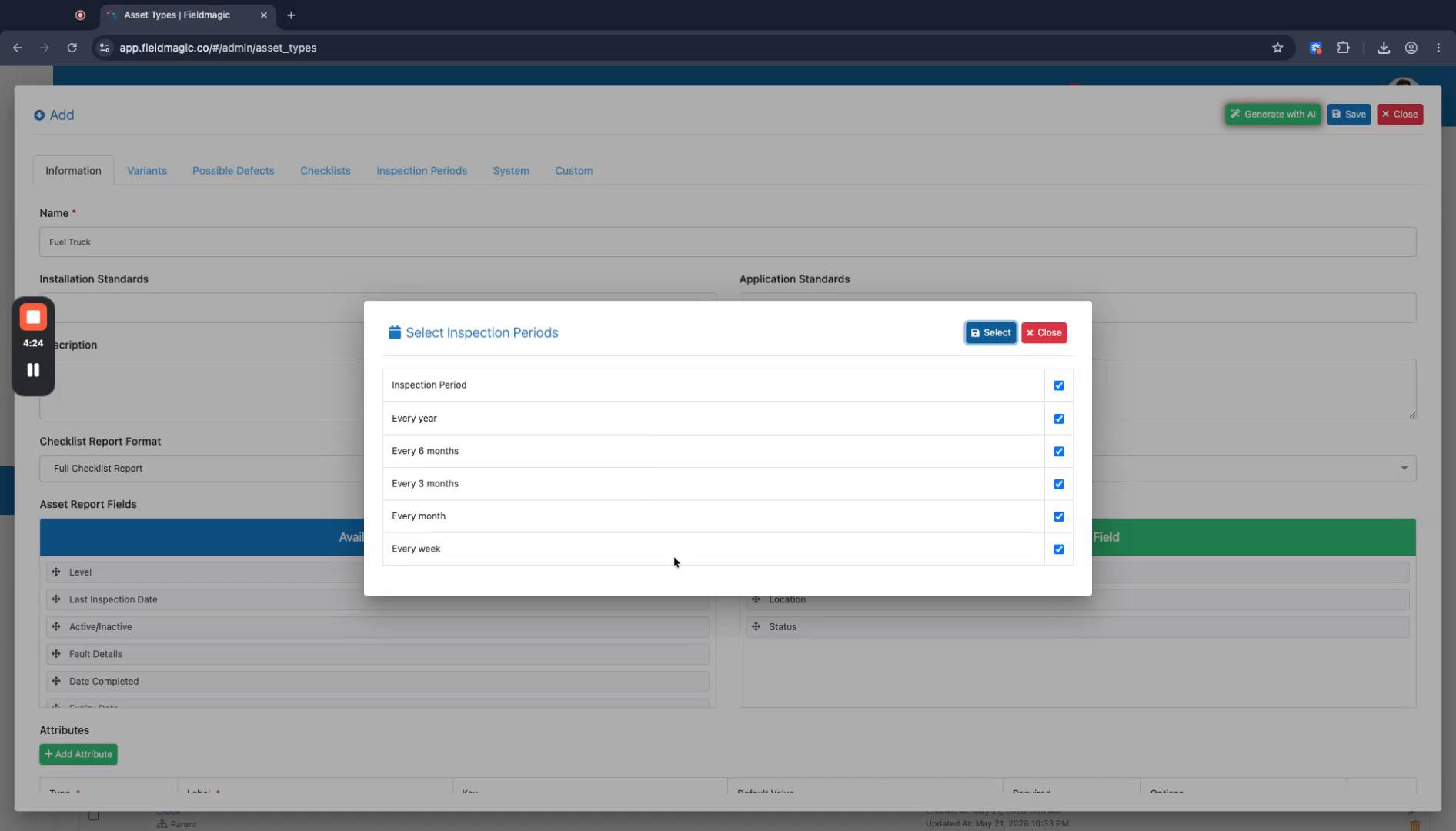
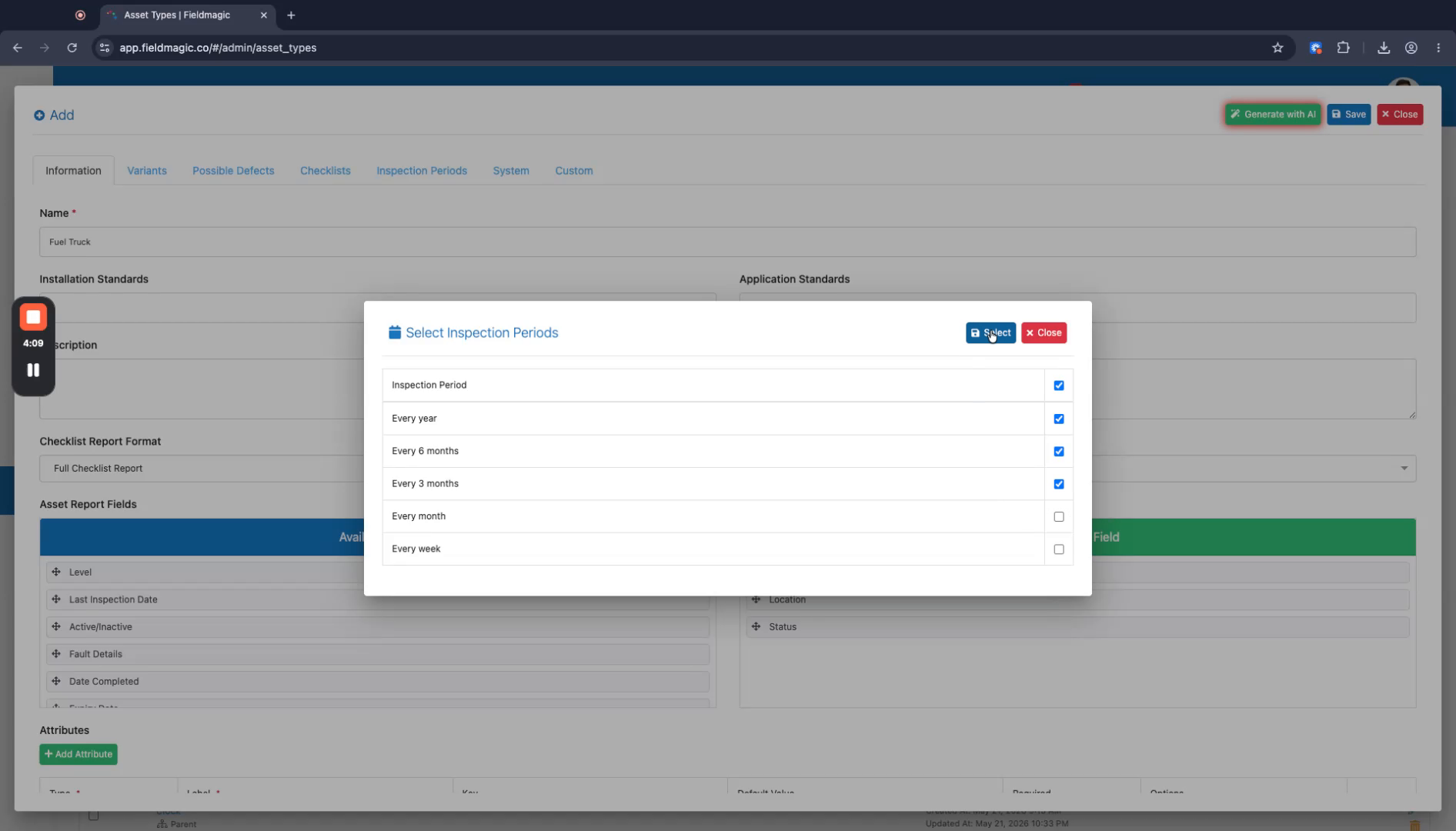
Select the desired inspection periods, such as one year, six months, and three months.
 Step 5
Confirm your selection to continue processing; the system will add data once generation is complete.
 Step 6
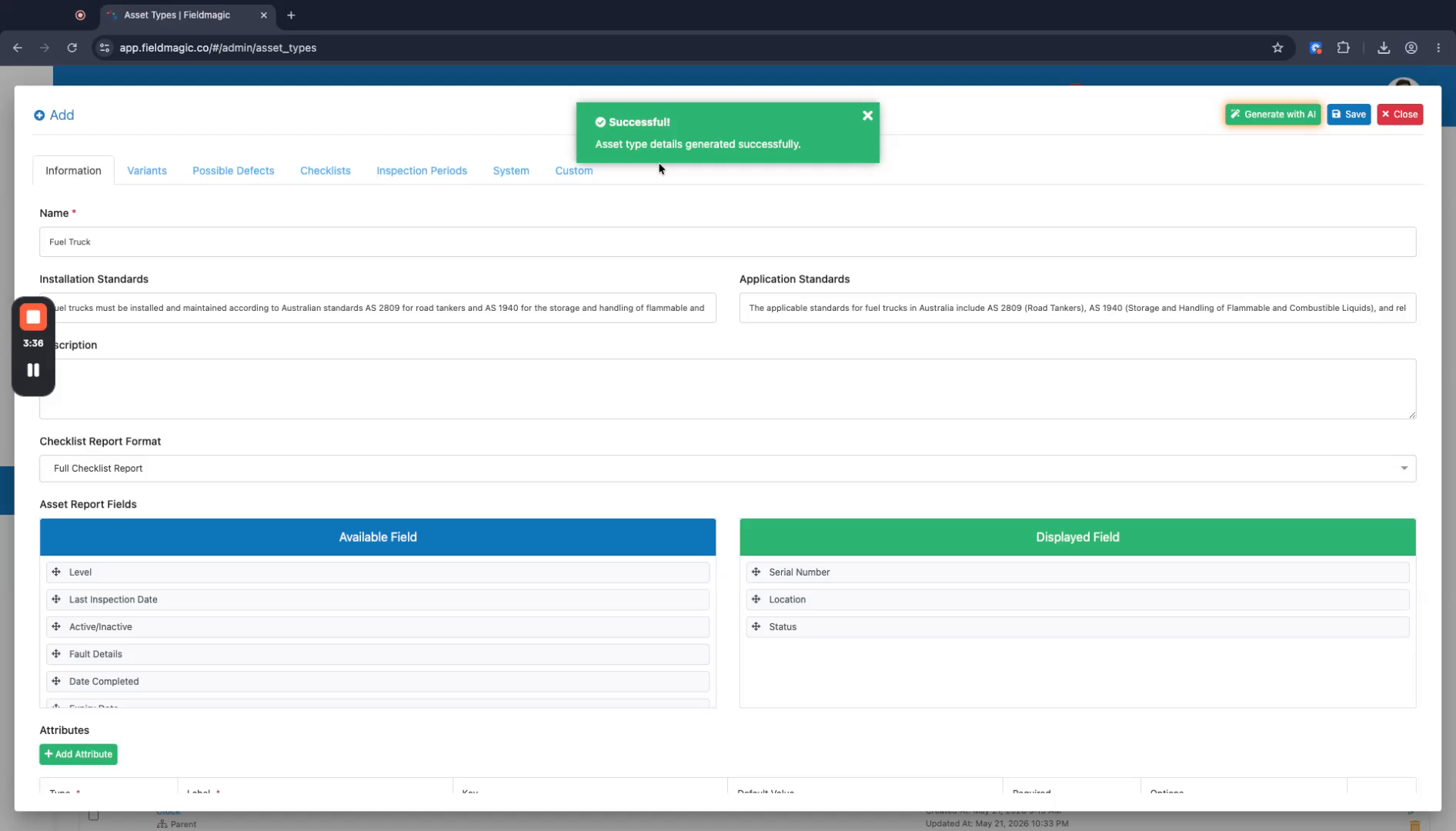
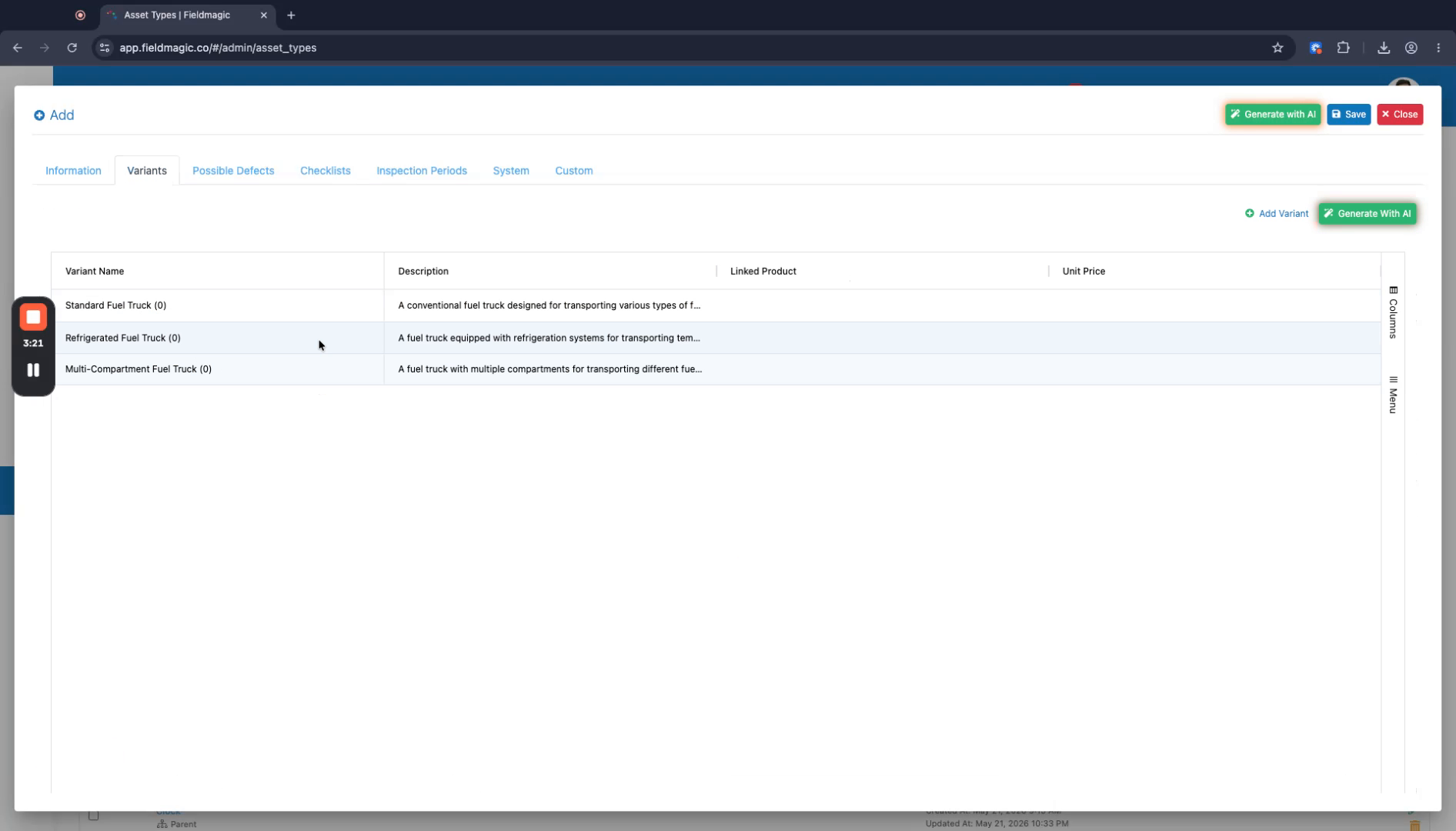
Review the generated data, which includes installation standards, application standards, and variants.
 Step 7
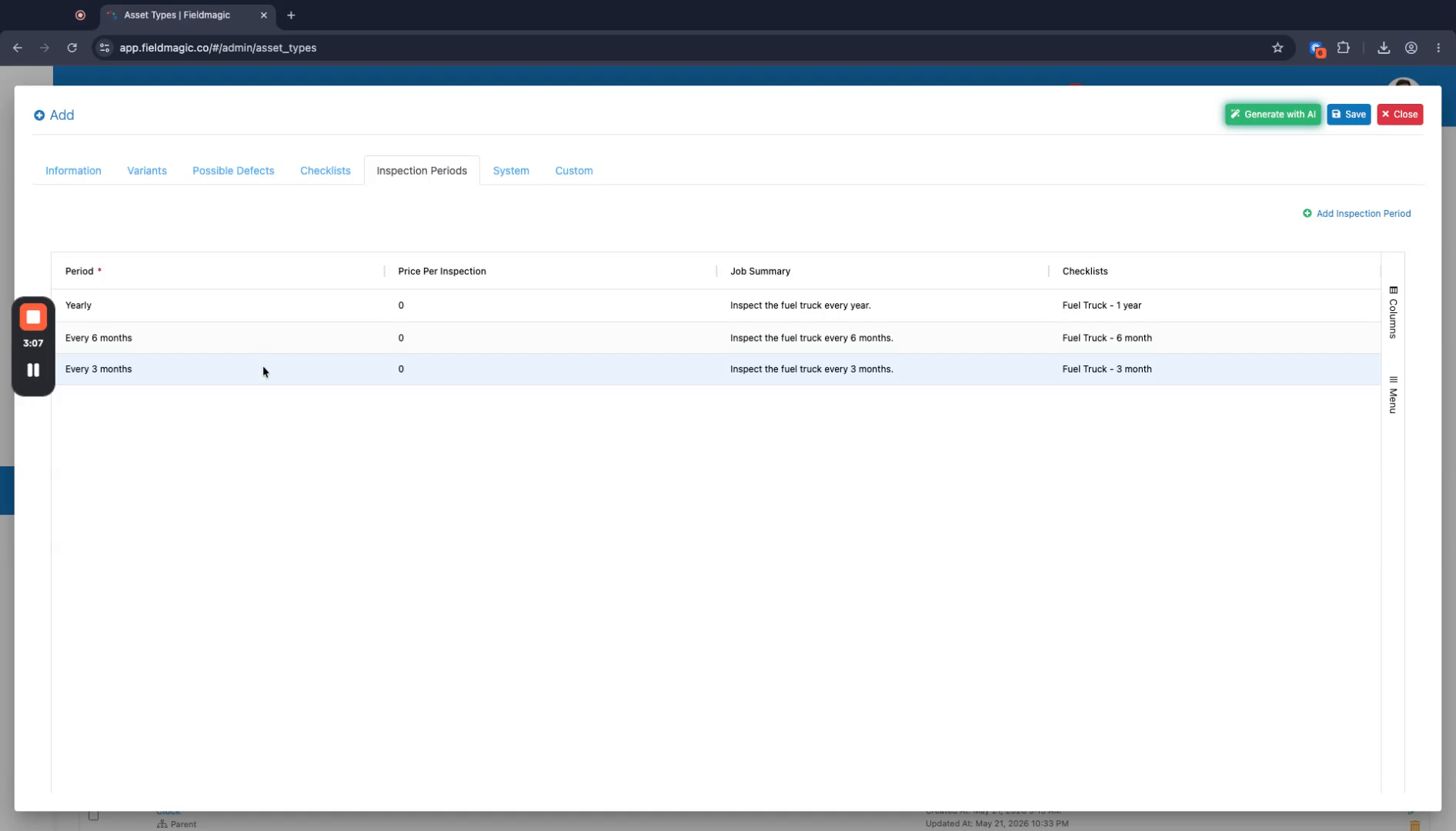
View the possible defects, checklists, and inspection periods that have been generated for your asset type.
 Step 8
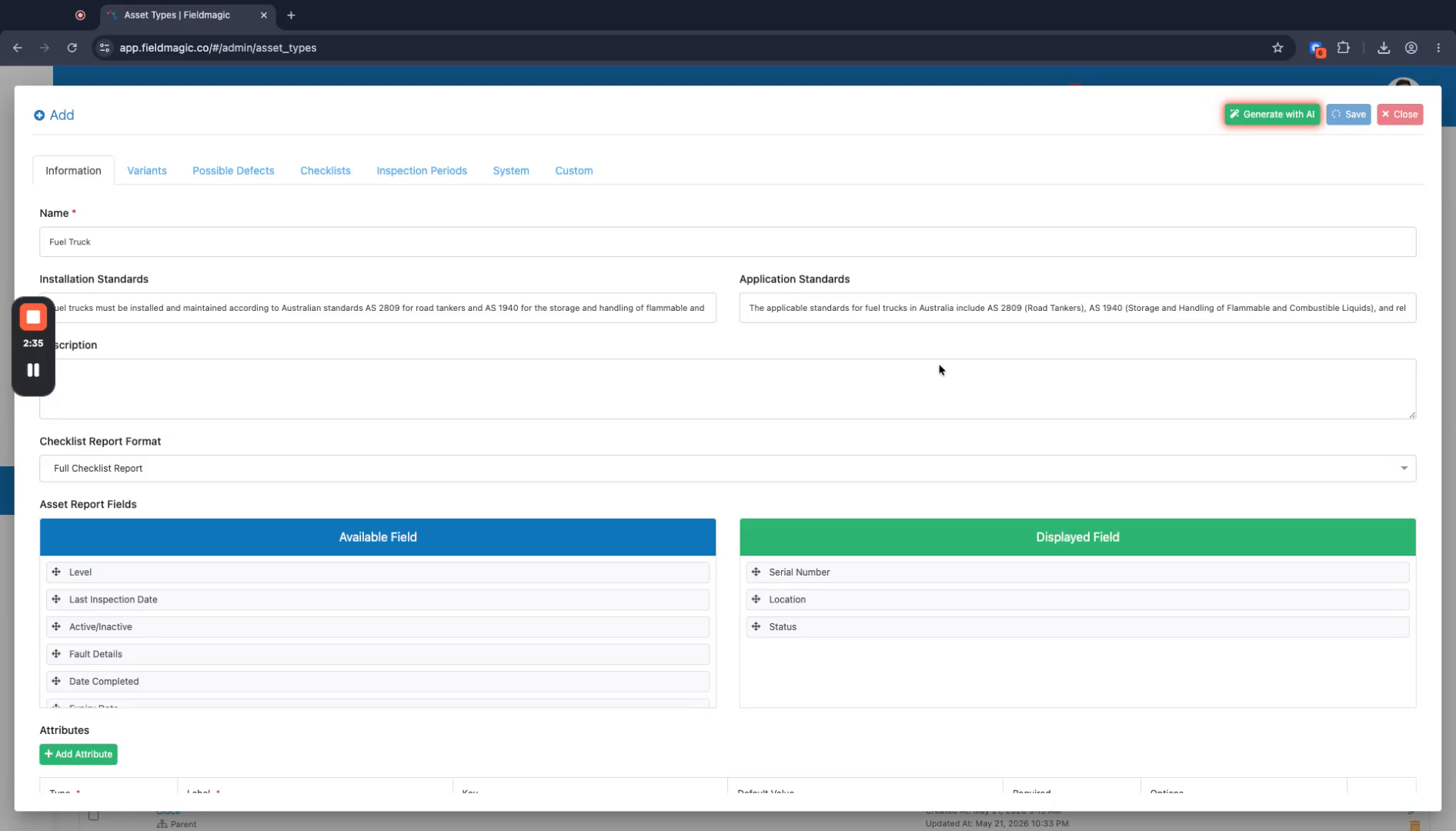
Verify that the checklists are automatically attached to each inspection period, then click Save.
 Step 9
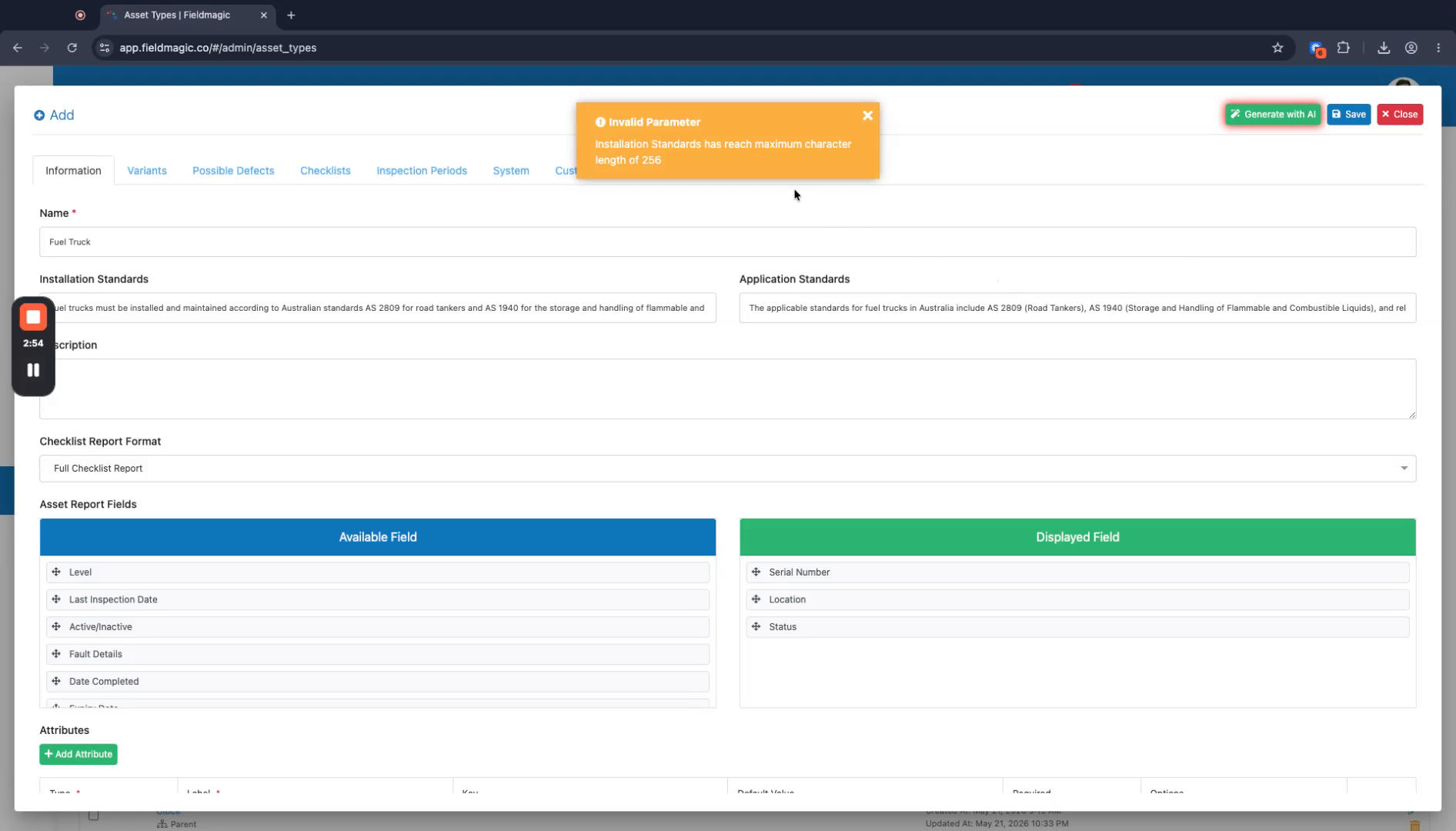
If needed, edit any of the AI-generated text to better fit your requirements.
 Step 10
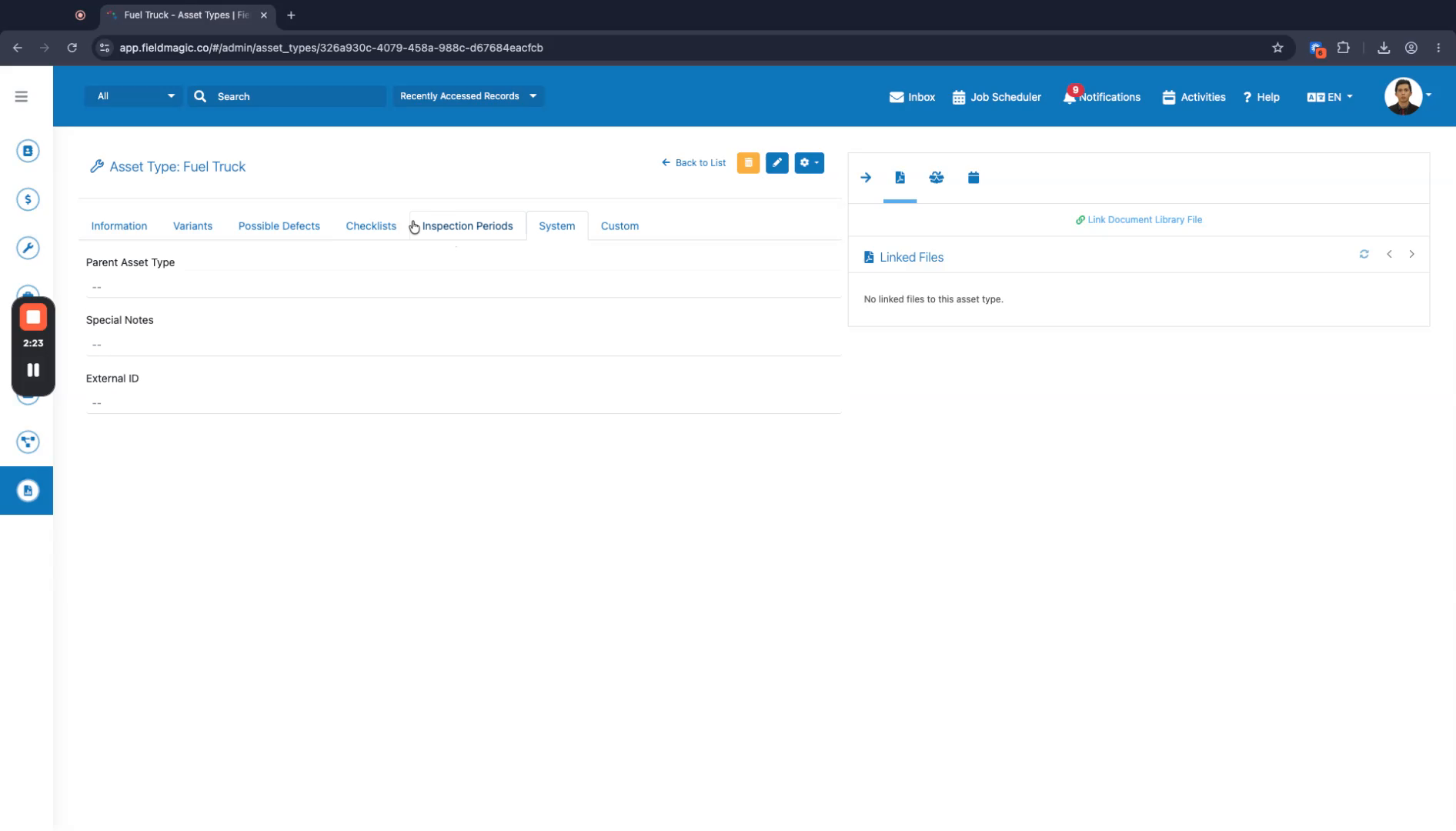
Confirm that all data has been saved and is visible in the asset type record.
 Step 11
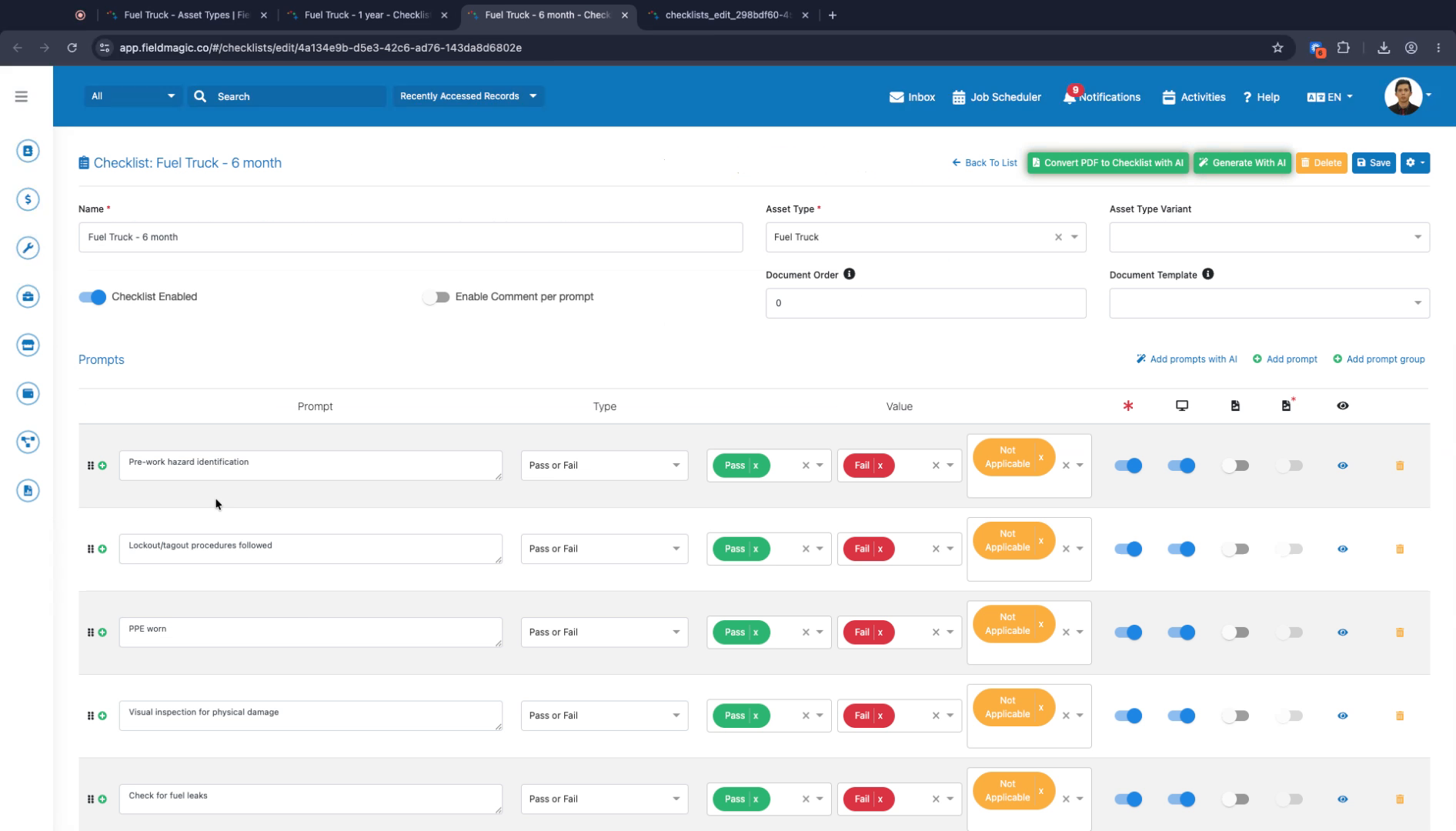
Review the generated checklists for each inspection period to ensure they meet your needs.
 Step 12
You have now successfully created an asset type using AI in FieldMagic.