Asset Management
Linking Assets to a Job in Manage Assets
Navigate to Manage Assets and select an asset type to begin linking an asset to a job.
Step-by-step instructions
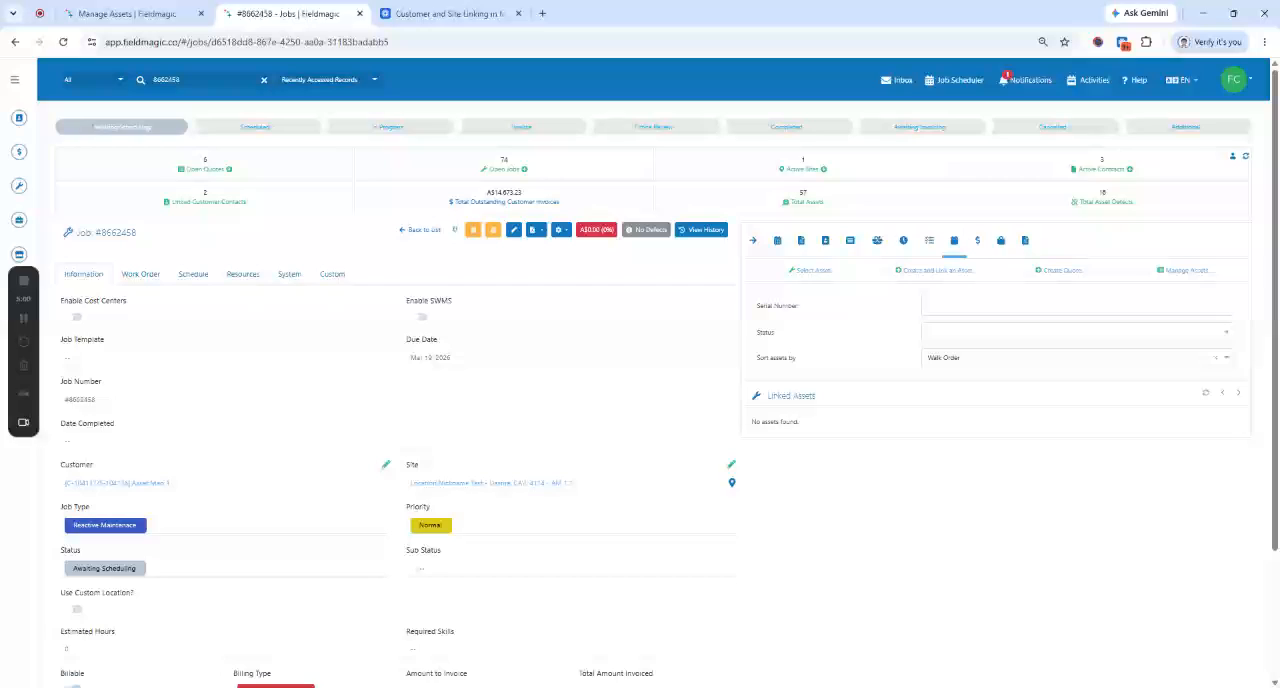 Step 1
Navigate to Manage Assets and select an asset type to begin linking an asset to a job.
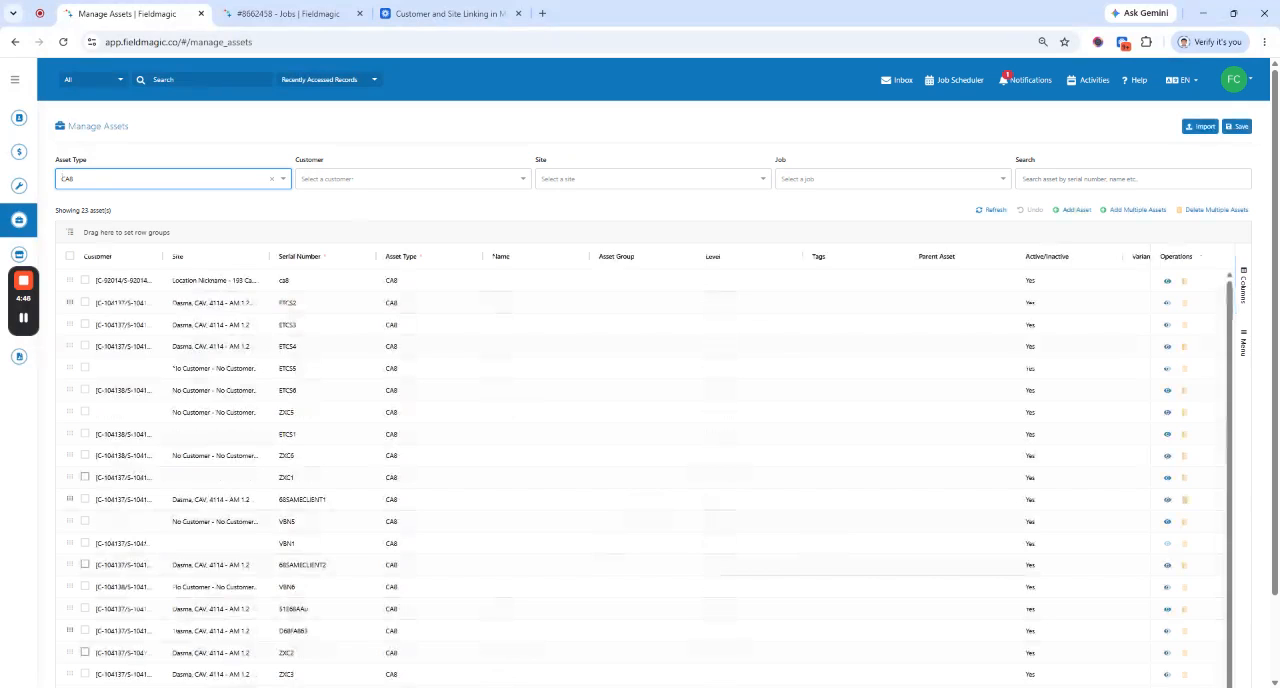 Step 2
Filter the list by Customer and Site to view only the jobs linked to that specific customer and site.
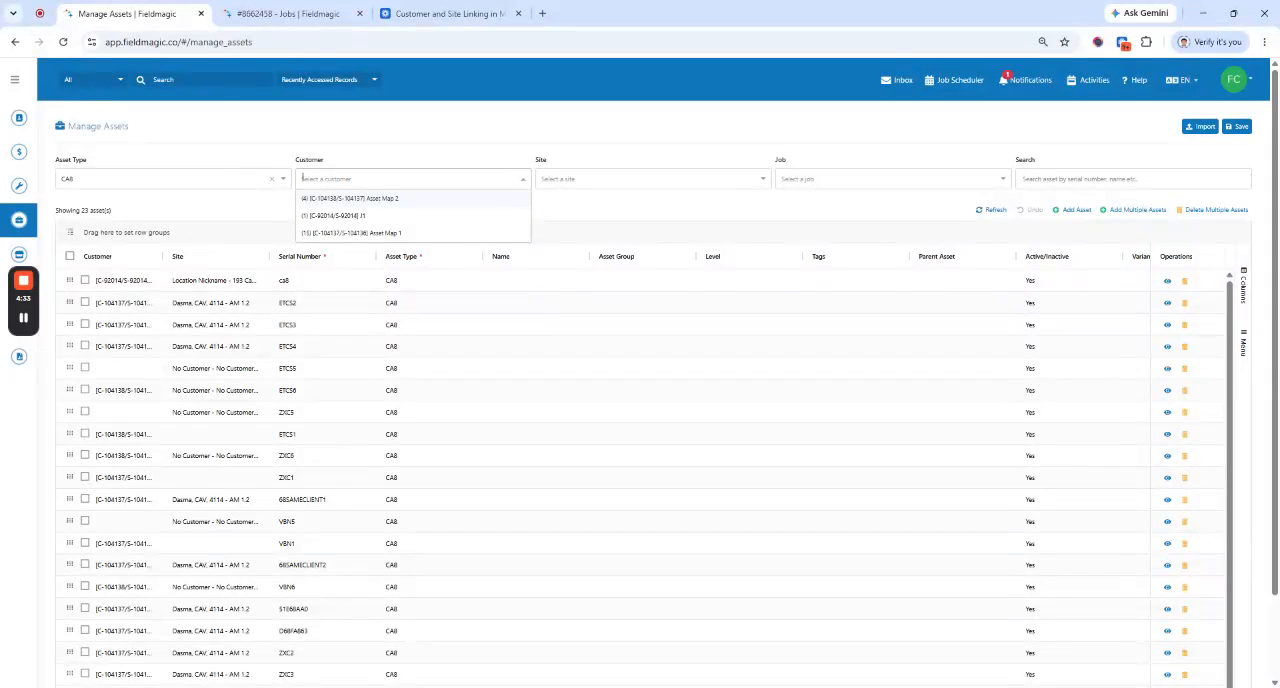 Step 3
Select the desired job number, click Add Asset, and enter the serial number.
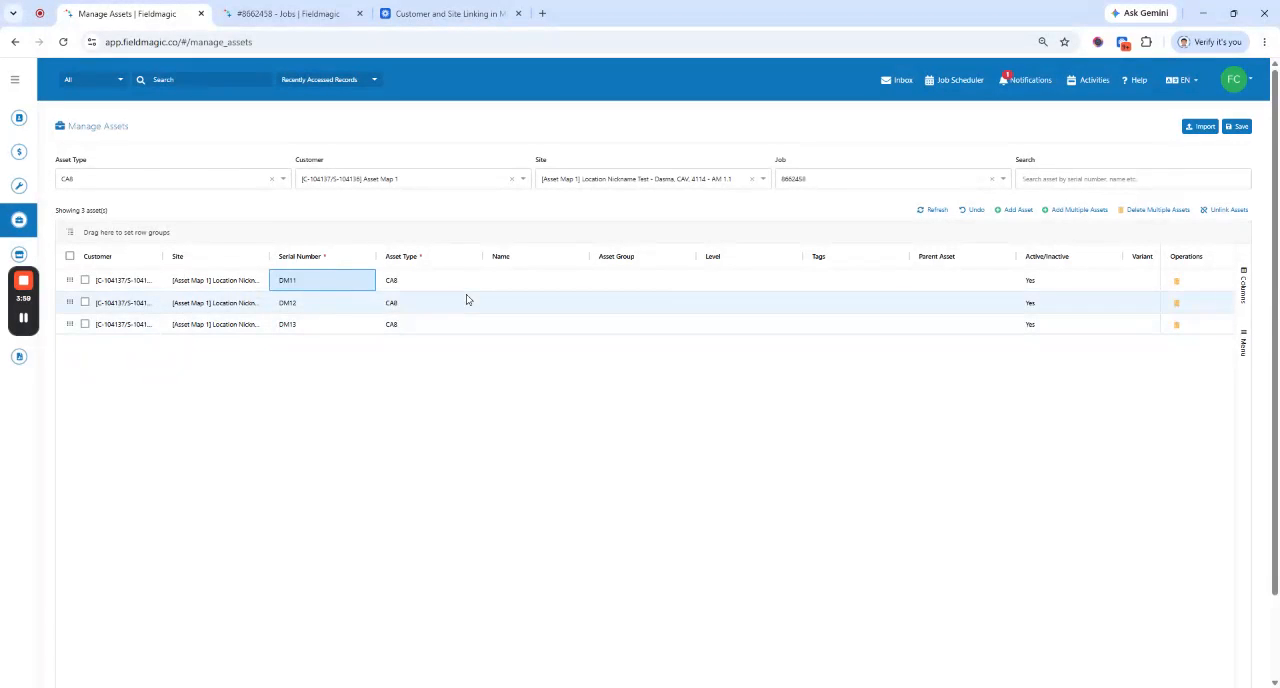 Step 4
Update the work order if needed, then click Save to link the asset and verify the connection in the job record.