Asset Management
Manage Asset undo button
This section demonstrates the undo button in Managed Assets. Navigate to Managed Assets in the mega menu. Select Asset type.
Step-by-step instructions
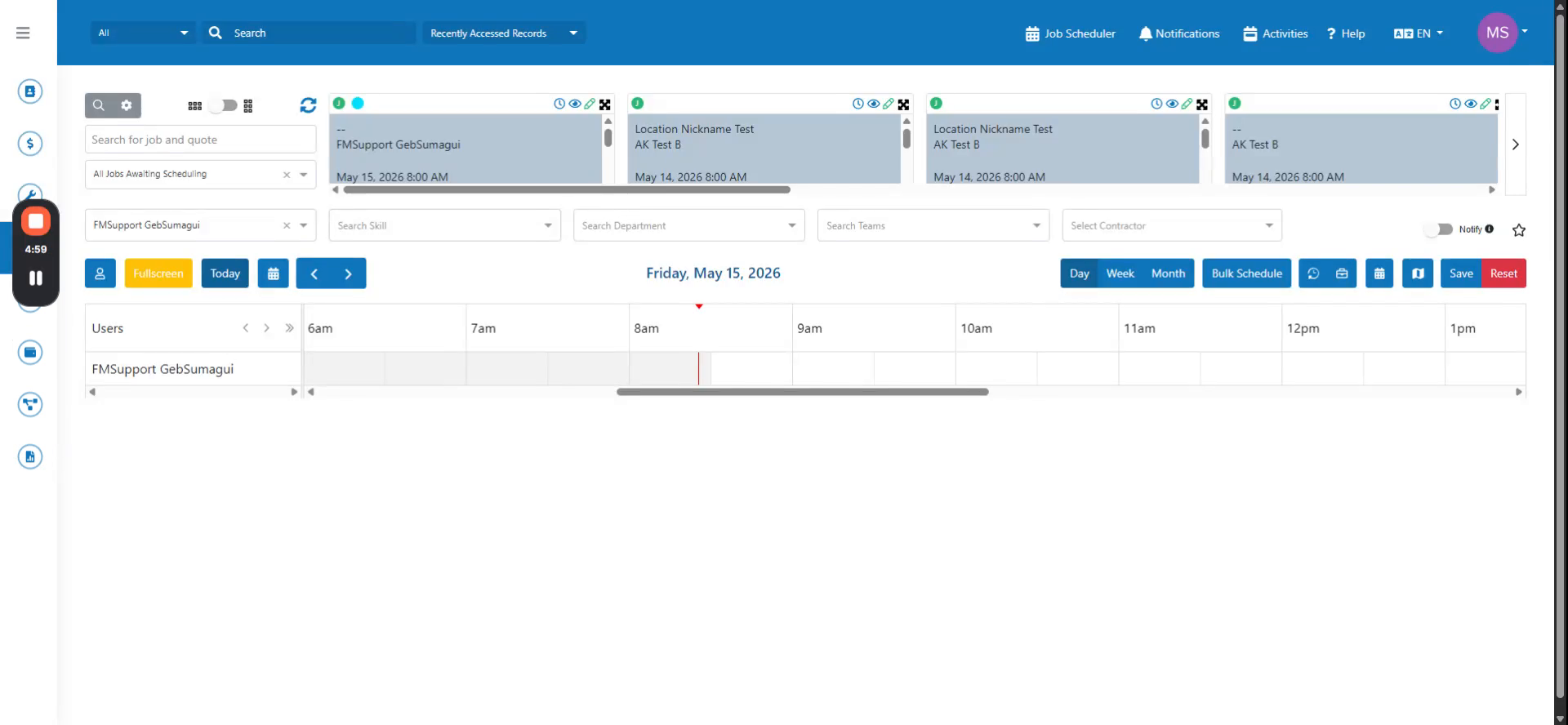 Step 1
This section demonstrates the undo button in Managed Assets. Navigate to Managed Assets in the mega menu. Select Asset type.
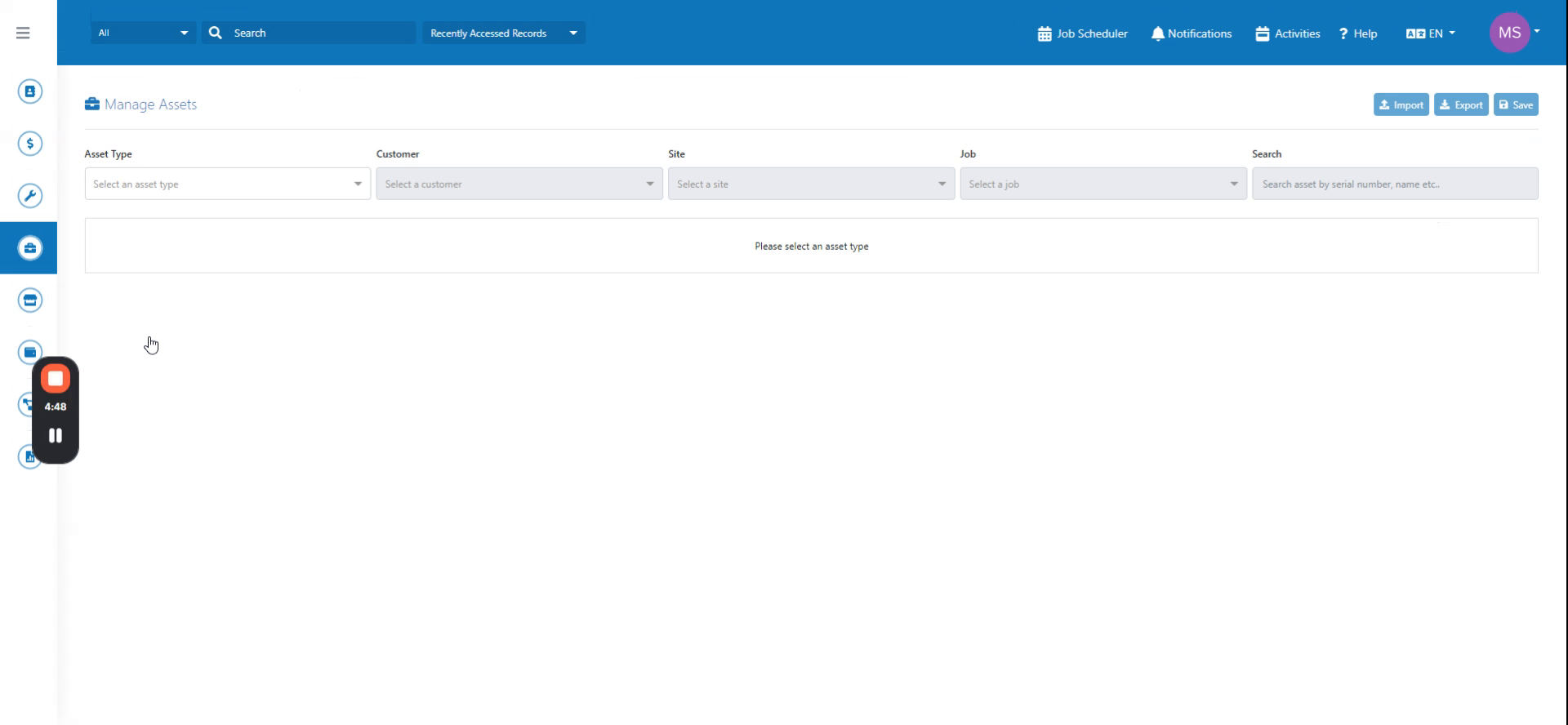 Step 2
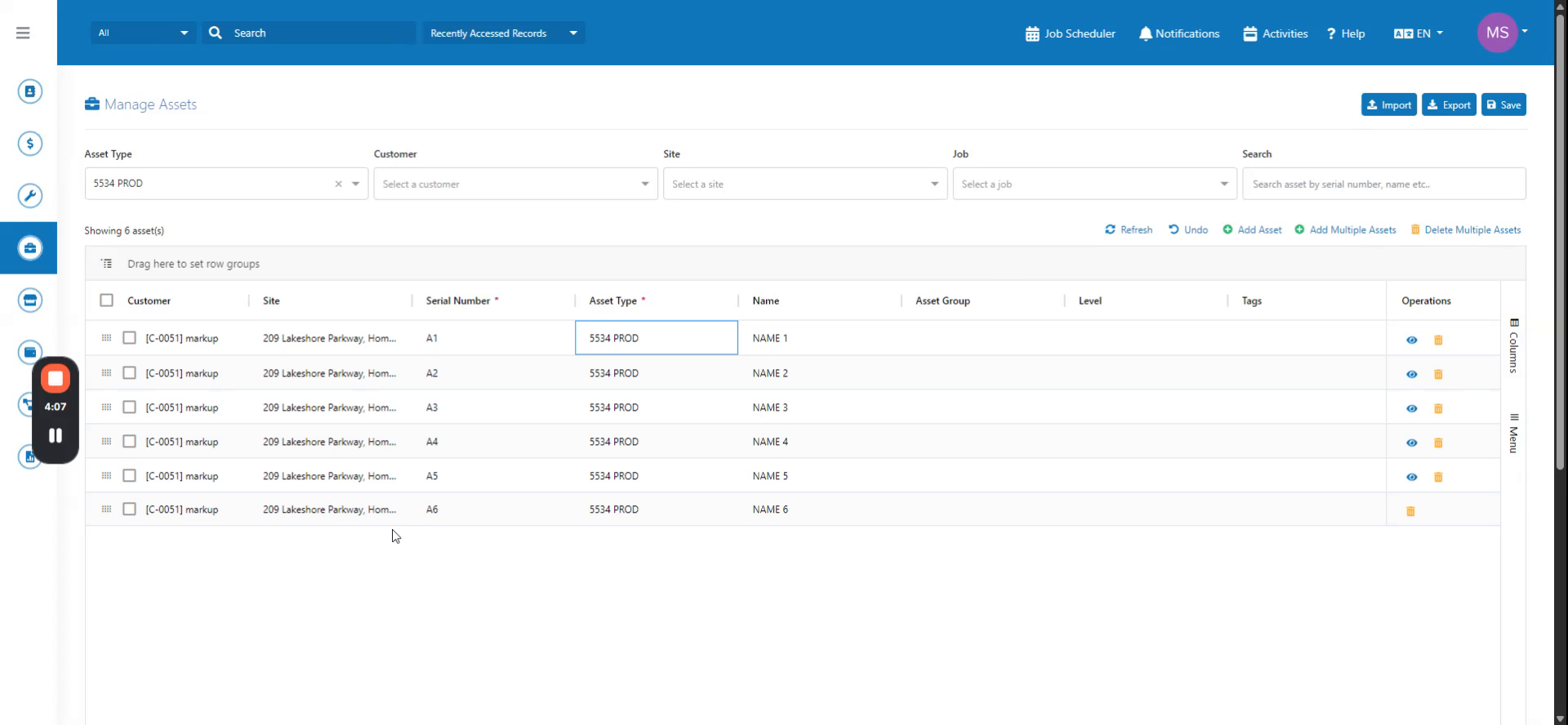
The asset list displays on the page. Click Add Asset to demonstrate the undo button. Copy the site name.
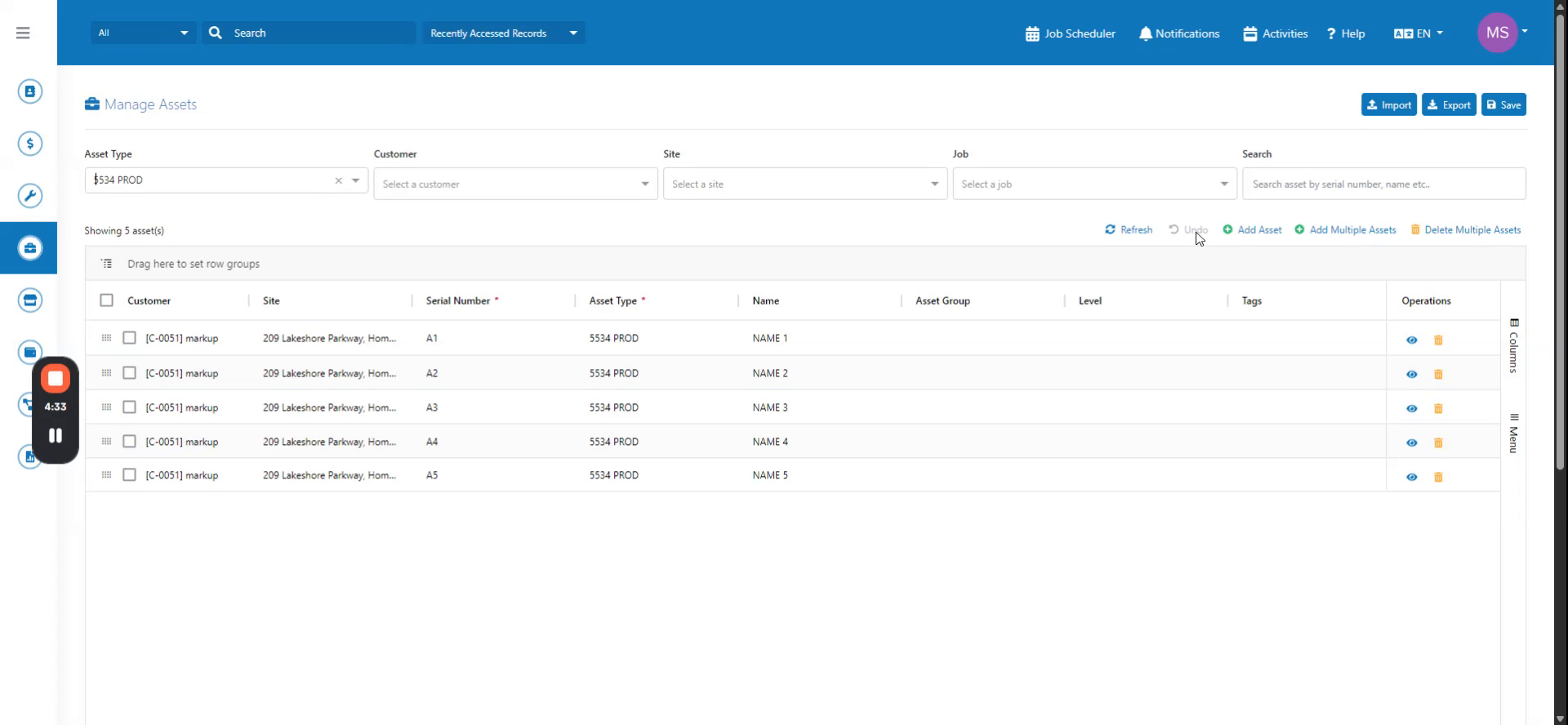 Step 3
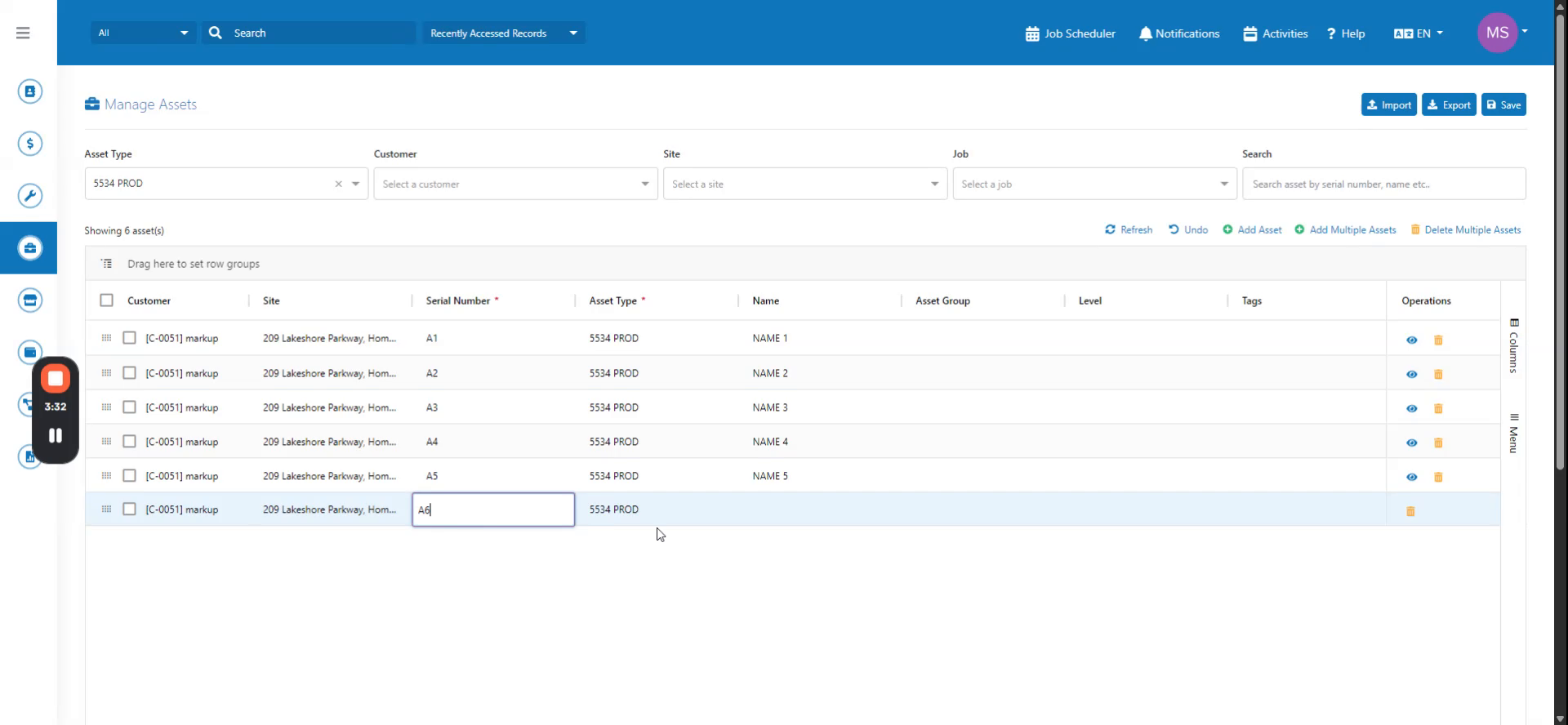
Paste the site name into the Site field and enter a serial number. Enter a name. The undo button is now available.
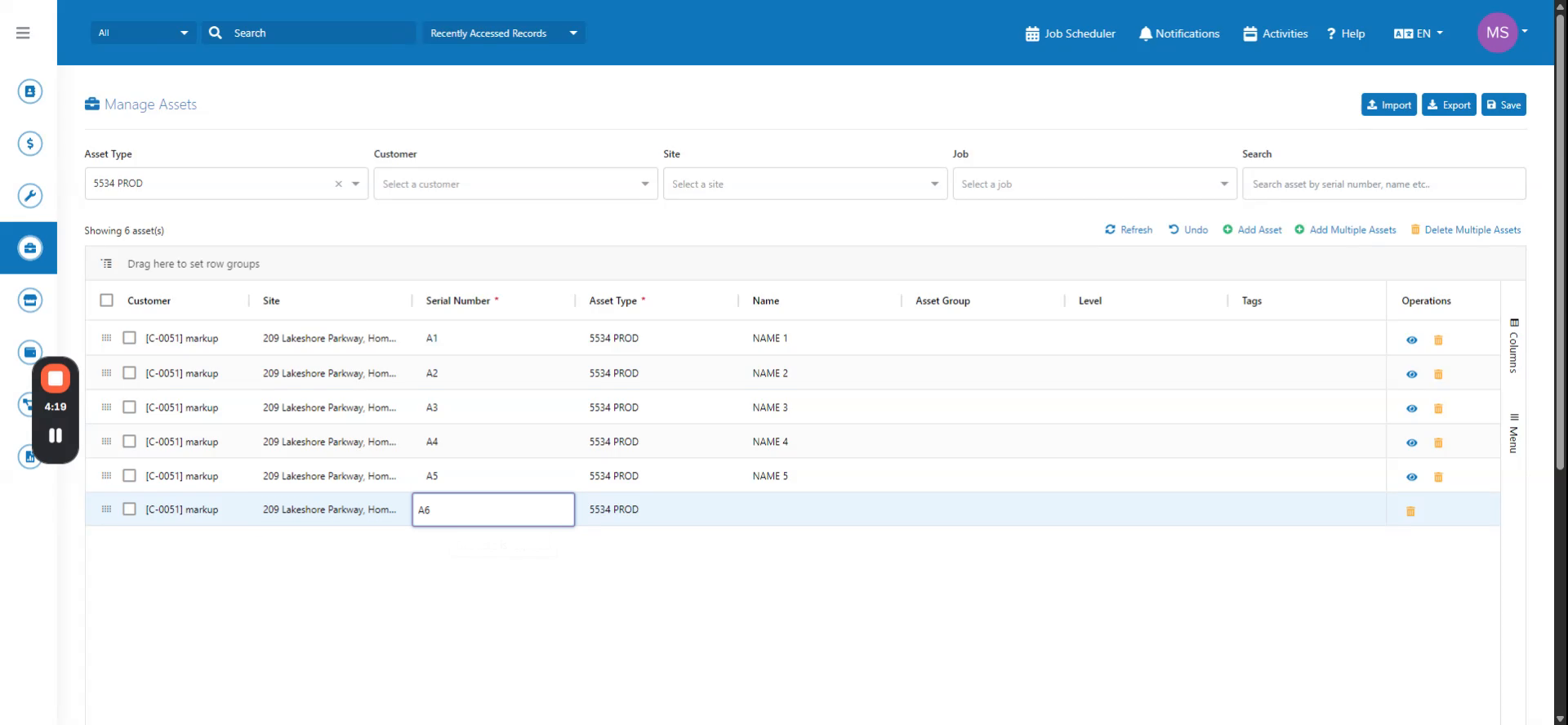 Step 4
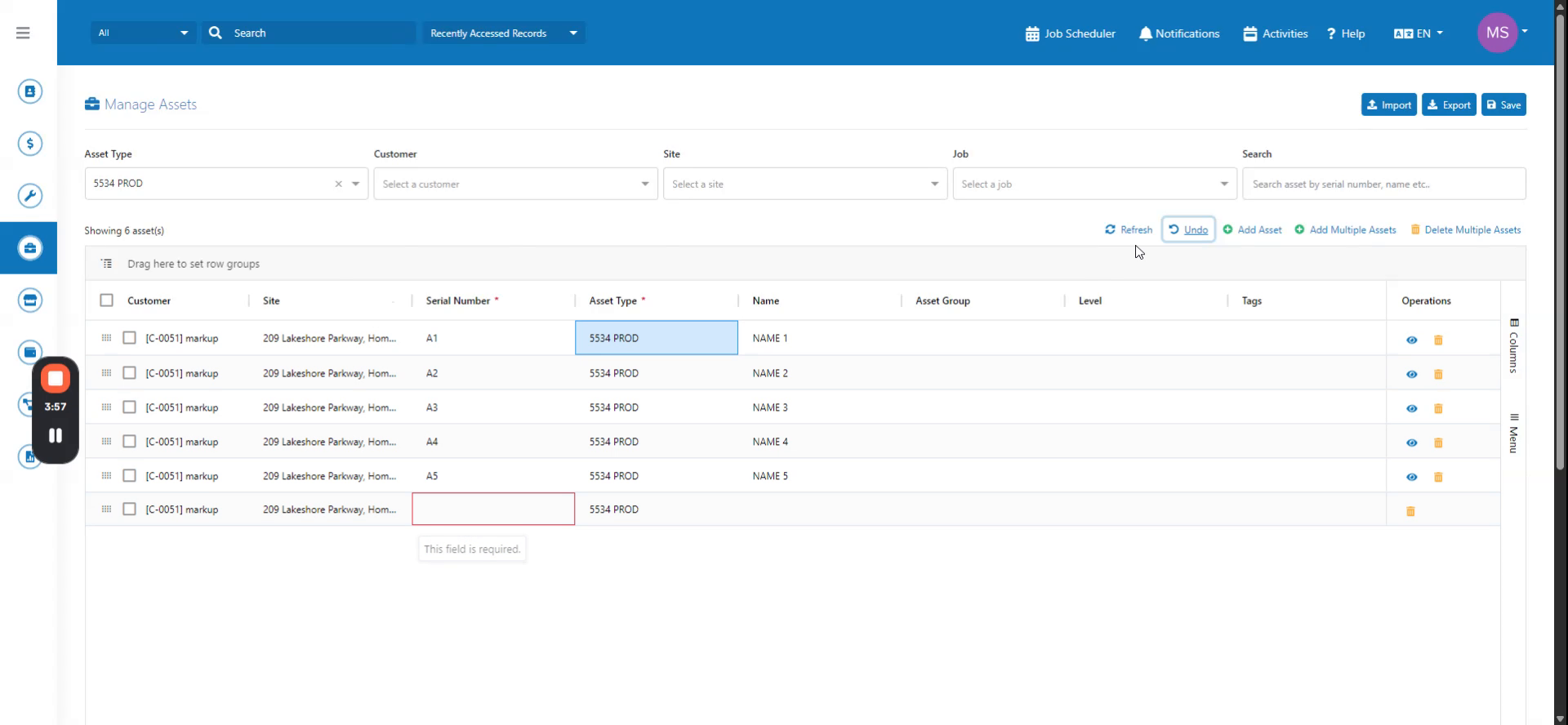
Click the Undo button to clear all inputs. The inputs are cleared. The name and serial number fields are cleared.
 Step 5
The customer field is also cleared. All fields are cleared because the site was copy-pasted and the customer field was auto-filled.
 Step 6
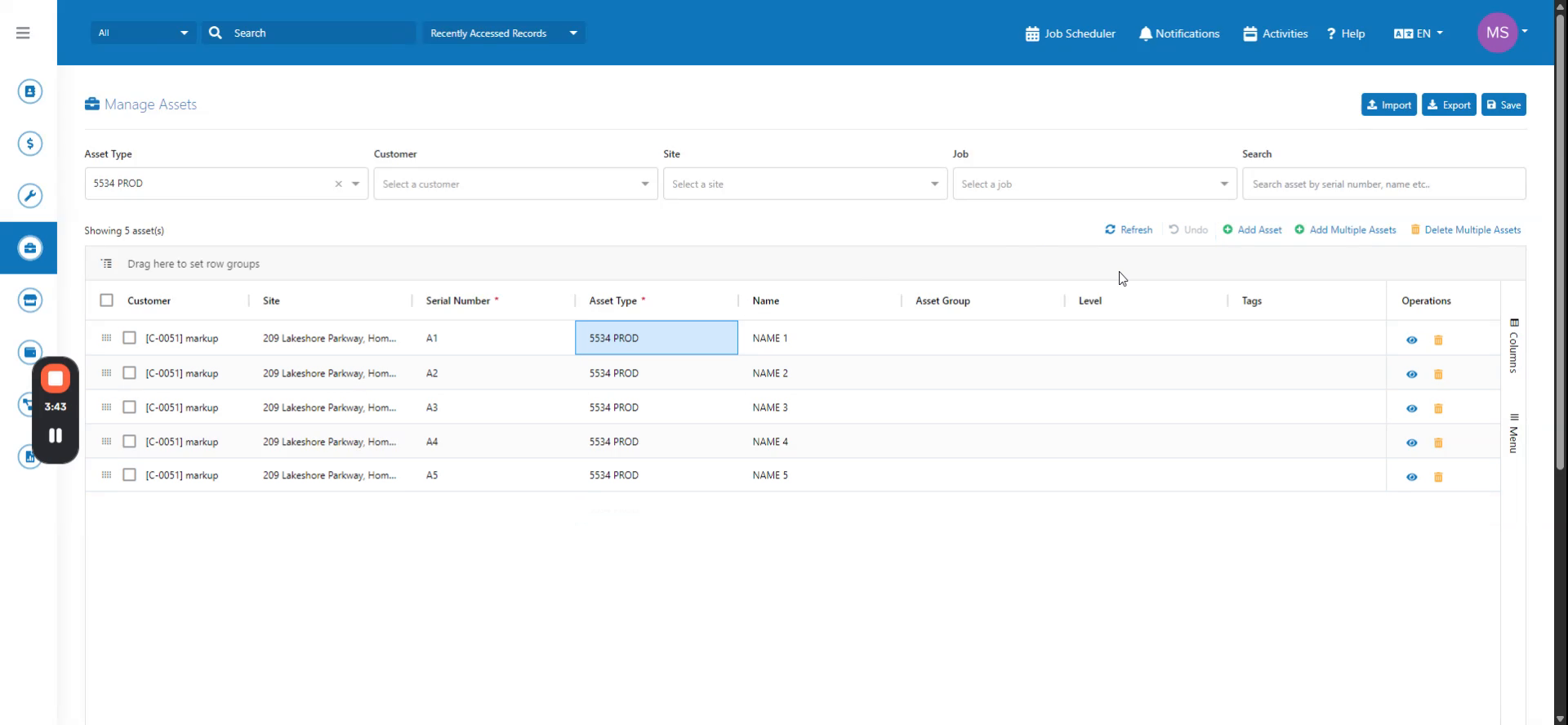
The asset line is removed. However, if you save the managed asset, the changes are finalized.
 Step 7
Click Save to save the managed asset. If you click save there, the undo button will no longer be available because the managed asset
 Step 8
has been saved. Also, if you delete an asset, it cannot be undone.